Link a computer to the Nomo app by scanning a QR code, or by typing a one-time code when you can’t open a browser.
Pairing hands your phone and your computer a shared encryption key. No server
ever sees it — which is why it takes a scan or a typed code rather than a login.You do this once per computer. The pairing expires if unused for 10 minutes.
One pairing covers the machine, not the agent. If you run any mix of Claude
Code, Codex and OpenCode on the same computer, they share it — you don’t pair
twice.
QR code
Typed code
The normal path. Use it whenever you can open a browser on the computer.
1
Start pairing
/nomo-cc:pair
$nomo-pair
/nomo-pair
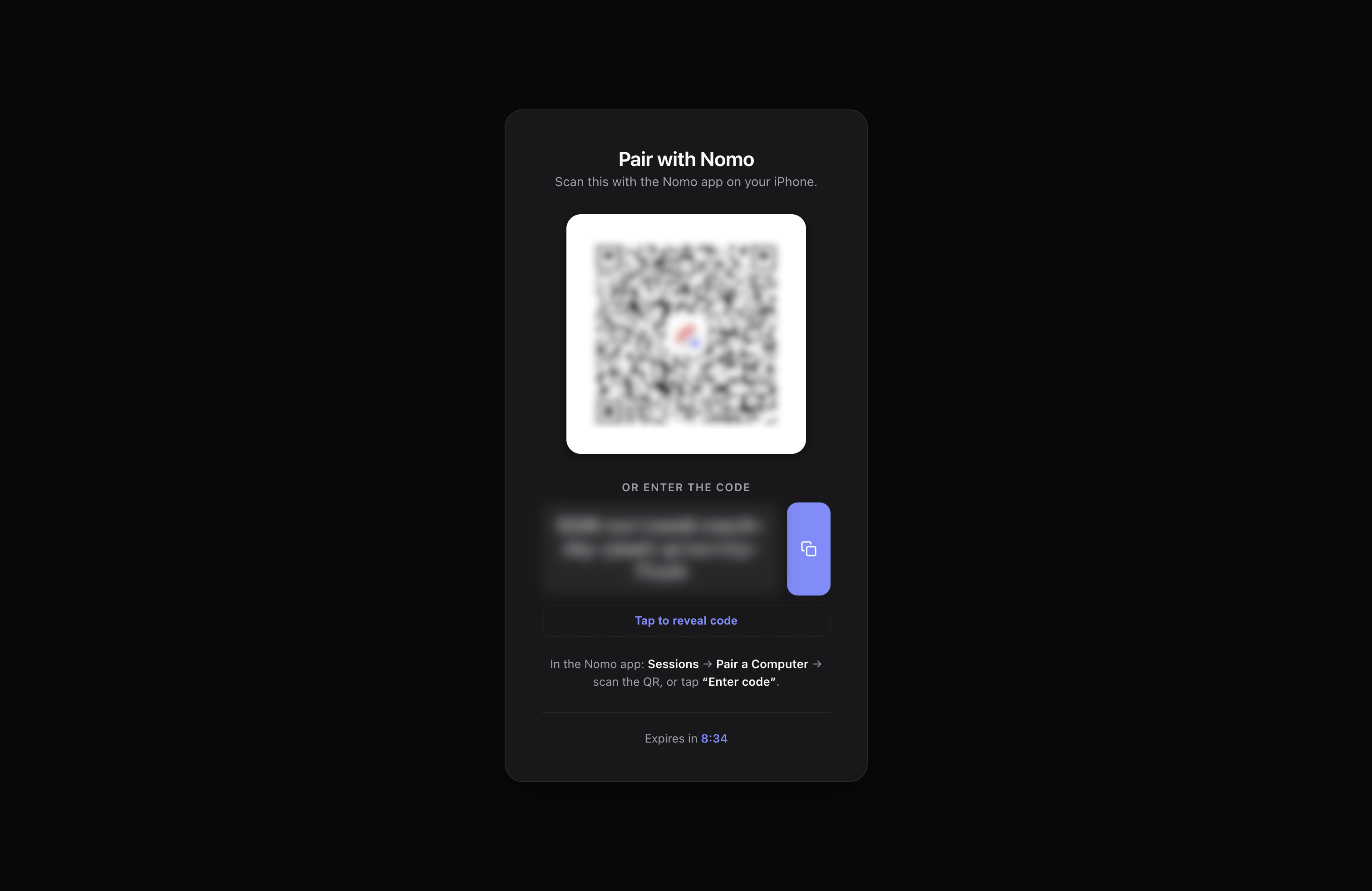
A themed pairing page opens in your browser with a QR code.
The pairing page on your computer. It flips to Paired ✓ on its own once the scan lands.
2
Scan it
In Nomo, go to the Sessions tab → Pair a Computer, and point the
camera at the QR code.
3
Done
The page flips to Paired ✓ on its own and tears itself down. Your
computer now appears in the Sessions tab.
The QR code and the one-time code appear only in that browser page,
never in your terminal. That’s deliberate — terminal output ends up in
agent transcripts, and these are the values an attacker would need.
For a headless box, an SSH session, or anywhere you can’t open a browser.
This path puts the pairing code into your terminal, and therefore into the
agent’s transcript. It’s a deliberate trade-off for machines that have no
browser — prefer the QR path when you have one.
1
Ask for the code
Pass code as the argument:
/nomo-cc:pair code
$nomo-pair code
/nomo-pair code
No browser opens. A one-time code prints straight to the terminal:
One-time code: <shown here> · expires in 10 min
2
What the code looks like
A number, then six words, lowercase and hyphen-joined:
7-anchor-brisk-cotton-dial-emerge-fabric
The words come from the BIP39 wordlist: no two share their first four
letters, and there are no lookalike characters. Long, but hard to
mistype or mishear.