Allow, deny, or answer Claude Code, Codex and OpenCode permission prompts remotely — from the island, or from the app with the full set of options.
When your agent wants to run something it doesn’t have standing permission for,
it stops and asks. Normally you’d answer that at your Mac. With Nomo you can
answer it from your phone, and the agent picks up immediately.
Turn it on first. Remote approvals are off by default. Settings →
Sessions → Remote approvals → Answer on iPhone. Until that switch is
on, prompts stay in your terminal and your phone only gets told about them.That’s the only thing you have to turn on. Nothing to run on your
computer — approvals are already enabled there, and the
approvals command exists to pause them,
not to switch them on.
The island announces. The app answers. They offer different things on
purpose.
Island and Lock Screen
In the app
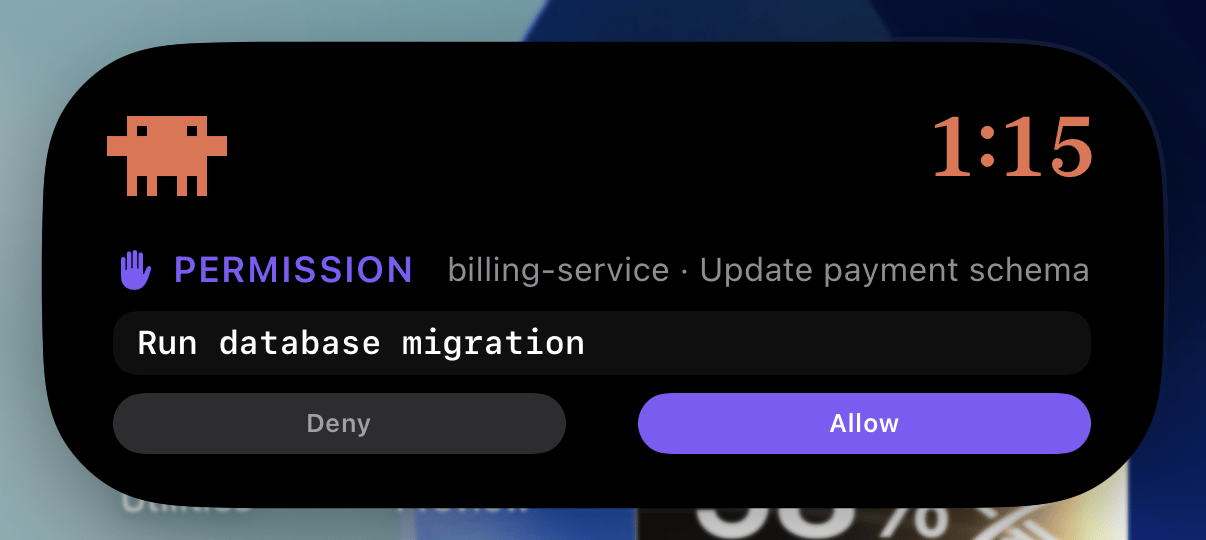
Two buttons, no more: Allow and Deny. That’s everything a Live
Activity can host, and Nomo won’t put a button there that it can’t honour.For a question, you get Think first — a real deny meaning none of
these, reconsider — and Answer, which deep-links into the app where the
options actually fit.Once a prompt is no longer live, the buttons are replaced with Continue on your Mac rather than sitting there doing nothing.
Touch and hold the island and the prompt is right there: the folder, the session, the command, and two buttons.
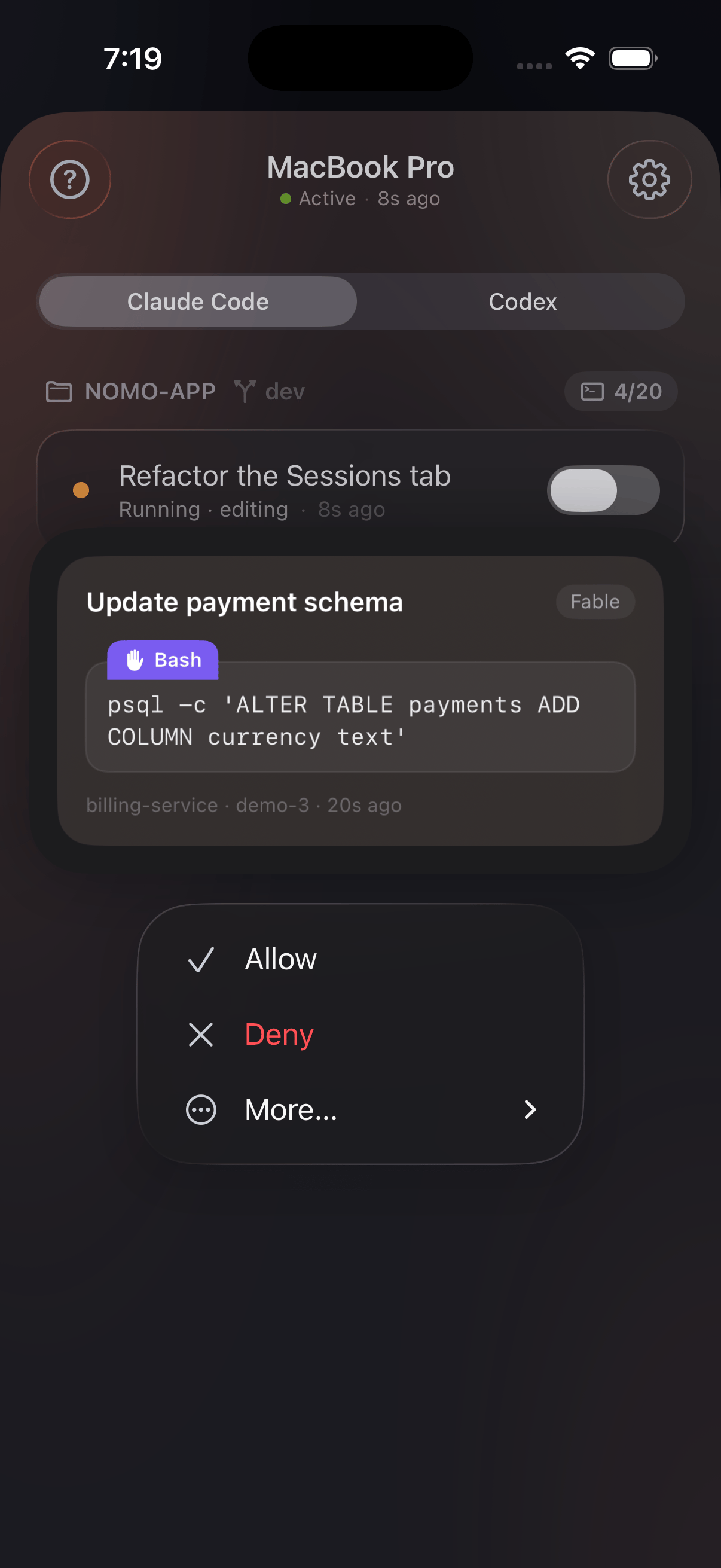
Touch and hold a session row. This is where the full set lives — and
it’s the part people miss, because tapping a row only expands it.Holding shows a preview card with the command, the file path, or the
question, and a menu underneath.
The card above the menu is the prompt itself — the tool, the command, and which folder it came from.
Allows it and stops asking for the rest of this session. Never written to disk, never carried into the next session.
Deny with note…
App only
Denies, and passes along what you typed — why, or what to do instead.
Answer…
App only
Picks an option for a multiple-choice question.
View full plan
App, plus View plan on the island
Opens the plan to read before deciding.
Open on Mac
App only
Answers nothing — it brings that session’s terminal window to the front on your Mac. Needs a local network link.
Two of these read differently on OpenCode: Deny answers for the whole turn
rather than one tool, and Open on Mac never appears. Both are explained in
Using OpenCode.
Always allow, Deny with note… and Answer… live under More… in the
menu, and all three need plugin 2.0.0. On 1.0.0 you get plain Allow and Deny
— Nomo won’t show a button the Mac can’t honour. The drawer tells you when an
update is available.
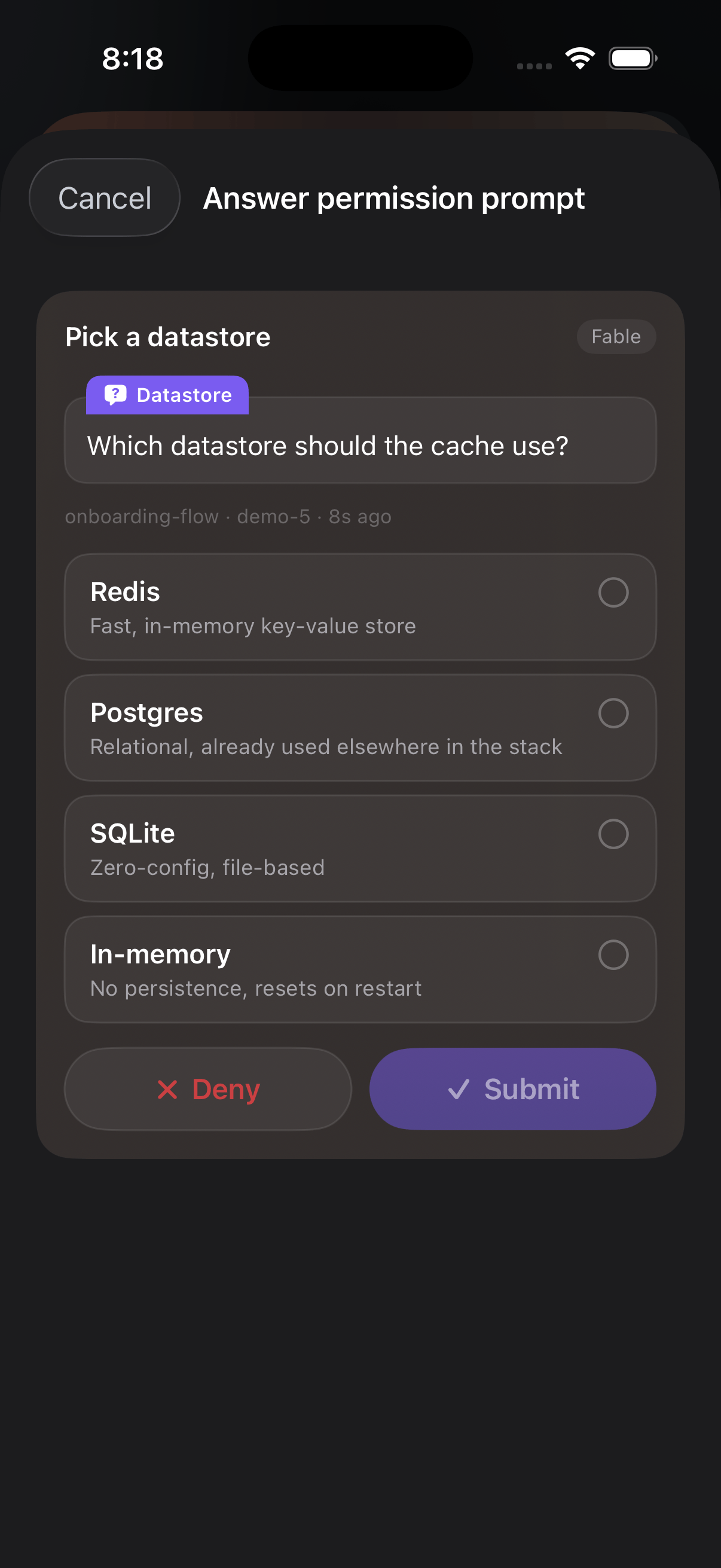
When the agent asks a multiple-choice question rather than for permission, the
row reads Needs an answer and the island says so without offering Allow or
Deny — those verbs are meaningless for a picker.Choose Answer… and you get the question with its options as rows, each with
whatever explanation the agent wrote for it. Tapping a row only selects it —
nothing is sent until you hit Submit. Deny sits alongside, for when none
of the options is the answer.
One question, four options, and the agent's own note on each. Selecting is not answering — Submit is.
Where the agent asked more than one question you’ll get them one at a time, with
Question 1 of 3 across the top and Back to revisit an earlier one with your
picks intact. Select all that apply appears where more than one answer is
allowed.
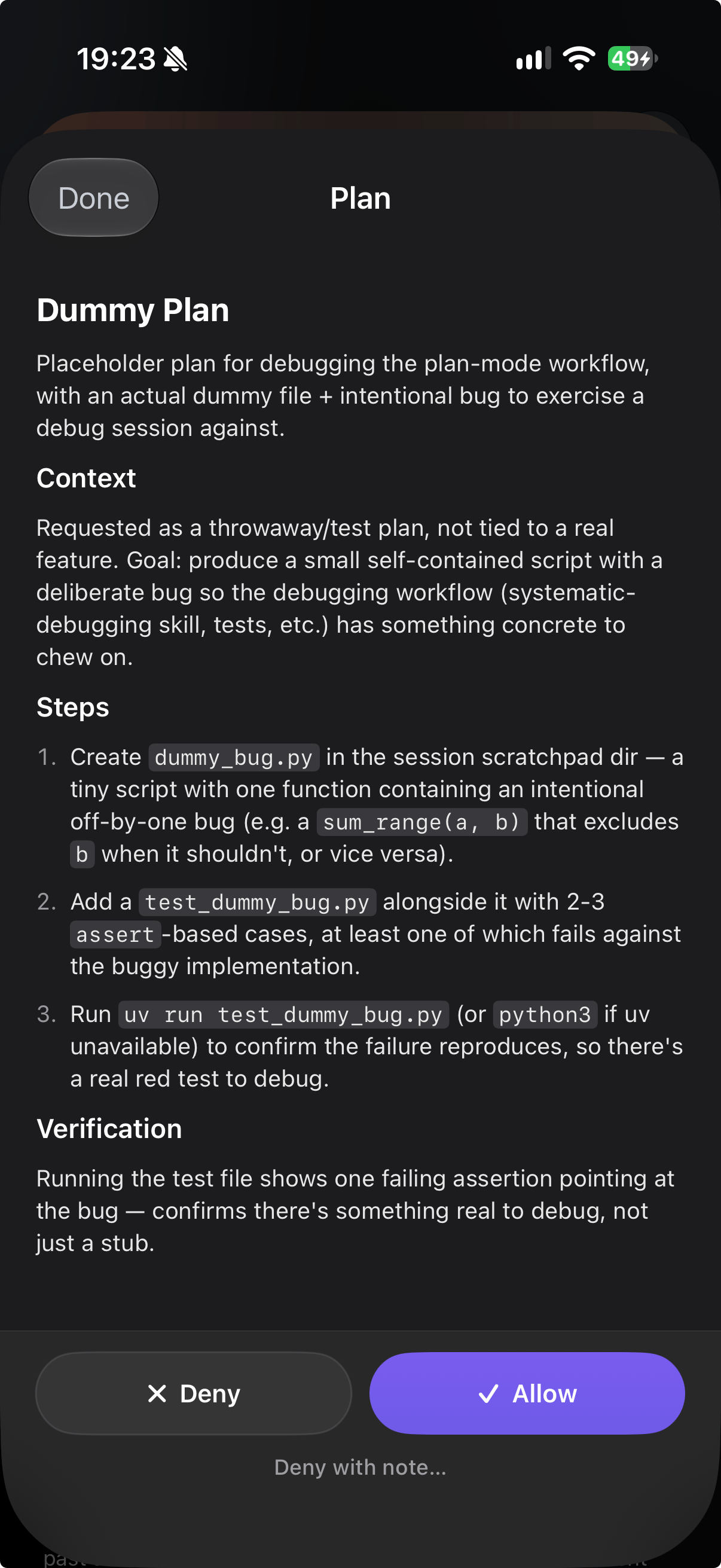
A session that’s finished planning shows Plan ready. Open View plan and
you get the whole thing typeset, scrollable, with Allow and Deny pinned
to the bottom.Approving from the phone is a plain approval — the same one you’d give by
picking the default at your Mac. It doesn’t let you choose between accepting
edits automatically and confirming each one; that stays a terminal decision.
The whole plan, scrollable, with the decision pinned to the bottom. Deny with note sits underneath for when it needs a steer rather than a no.
If the plan was too long to fit in one encrypted update, the sheet says so and
tells you how much was left out. The whole plan is always still in your
terminal. When your phone can reach the Mac directly over your local network,
Nomo re-fetches the full text instead.
Codex plans are read-only on the phone — you read them here and choose in
the terminal. Why. OpenCode usually
writes no plan document at all, so View plan shows the session’s todo list
instead — why.
The row shows Sending…, then settles. Your answer is sealed once on your
phone and sent to your Mac two ways at once — through the relay, and directly
over your network when that’s available. Whichever arrives first wins; the
second is discarded, so a duplicate can’t double-answer anything.Nomo also verifies afterwards. A plain “OK” from the relay isn’t trusted on its
own — the phone checks the prompt actually got settled, and re-sends if it
didn’t. If it genuinely can’t confirm, the buttons come back rather than leaving
you believing something happened.
The agent gave up waiting before your answer arrived.
Replaced by a newer request
The agent moved on and is asking something else now.
Approvals paused — answer on your computer
Paused on that computer — see below.
Not sent — try again
It failed and the retries ran out. Tap again.
Too long to send — answer on your computer
Your answer doesn’t fit in one encrypted update. This one won’t succeed on a retry.
An answer that arrives too late is discarded, never applied. You’ll never come
back to find something ran because you tapped it twenty minutes ago.
Buttons need to have been on screen for about a second before a tap counts.
If the island expands under a thumb that was already moving, that tap is
dropped on purpose — it was never a decision.
If your phone never answers, the prompt eventually falls back to the terminal on
its own. So does anything Nomo can’t reach the phone about: no pairing, no
network, a timeout, an unreadable response — every failure path ends with the
ordinary dialog appearing at your Mac.Some prompts never reach your phone at all, by design: sessions started by
sub-agents, and sessions running in a non-interactive permission mode where the
agent wasn’t going to ask you anyway.
Two switches, at different scopes — and they start in opposite positions.
The phone one starts off, the computer one starts on, so turning the phone one
on is the whole setup.On your phone, for everything — Settings → Sessions → Remote approvals →
Answer on iPhone.
Off means every prompt is decided at the Mac.On one computer — /nomo-cc:approvals off,
run on that machine. The escape hatch for when your phone is the thing that’s
unavailable: prompts fall straight back to the terminal with no waiting.Neither one unpairs anything. You’ll still see sessions either way — you just
won’t be asked to answer for them, and a paused computer says so at the top of
its drawer.