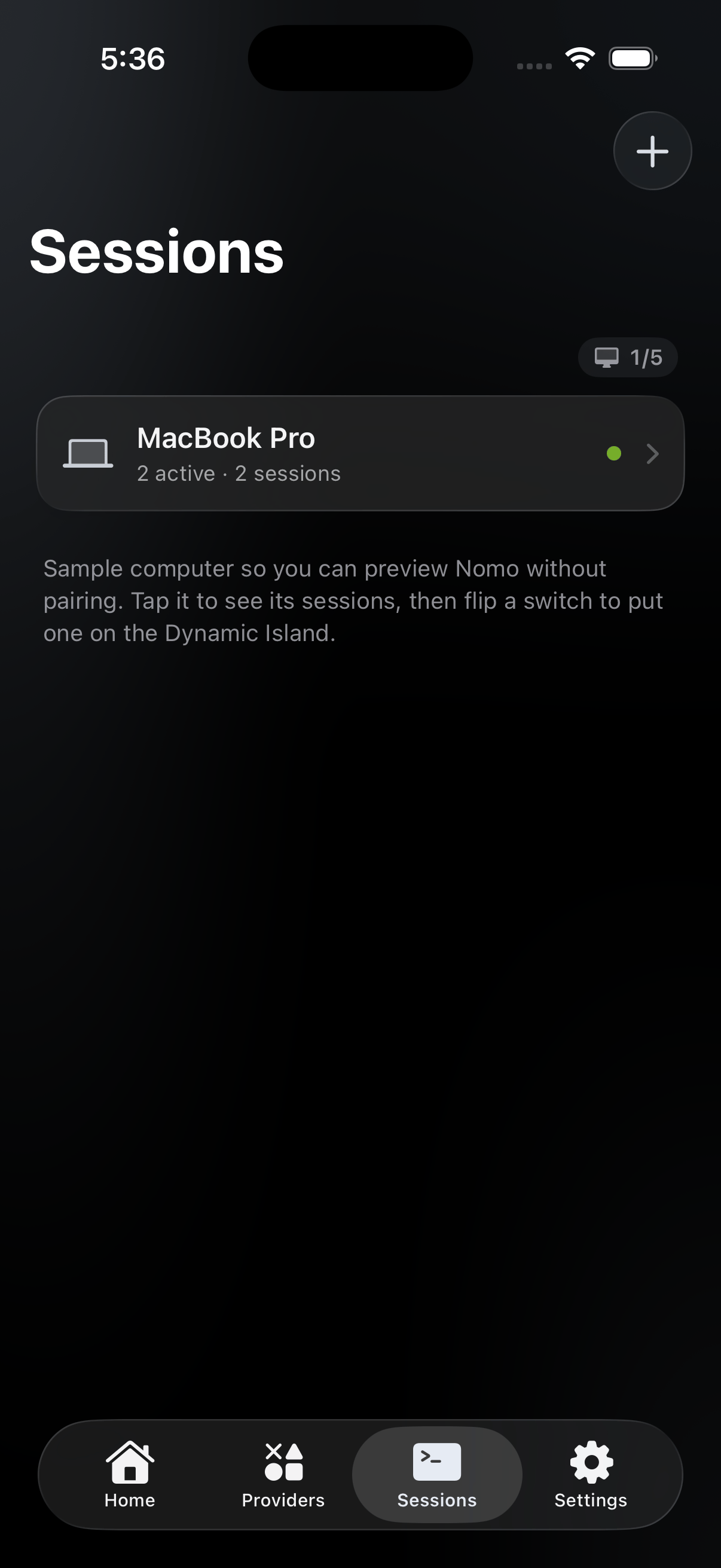
The Sessions tab. One card per paired Mac, with its session count and a dot for the connection.
The computer list
Each card carries the computer’s name, a one-line summary, and a coloured dot for the connection.
The summary reads
No active sessions, 1 session, or 3 active · 7 sessions.
“Active” excludes finished sessions, unreadable ones, and any session that
claims to be working but has been silent for more than 10 minutes.
A chip in the top-right shows how many computers you’ve paired. It turns orange
if you hit the cap.
Touch and hold a card to Rename or Forget This Computer. Renaming is
local to your phone. Forgetting stops the computer from appearing here — you
can pair it again anytime, and it doesn’t touch anything on the Mac itself.
Inside a computer
Tapping a card opens a drawer with a segmented control at the top, one segment per agent — Claude Code, Codex and OpenCode. Nomo opens whichever agent was active most recently. Sessions inside are grouped by project folder, with the folder’s git branch shown next to the header. One folder gets a single Sessions card; two or more get one card each, named after the folder. Under the computer name at the top you’ll see whether it’sActive, Last active, or Reconnecting… — and, when Nomo is talking to the Mac directly
over your network rather than through the relay, a green ⚡ Local chip. See
Local network.
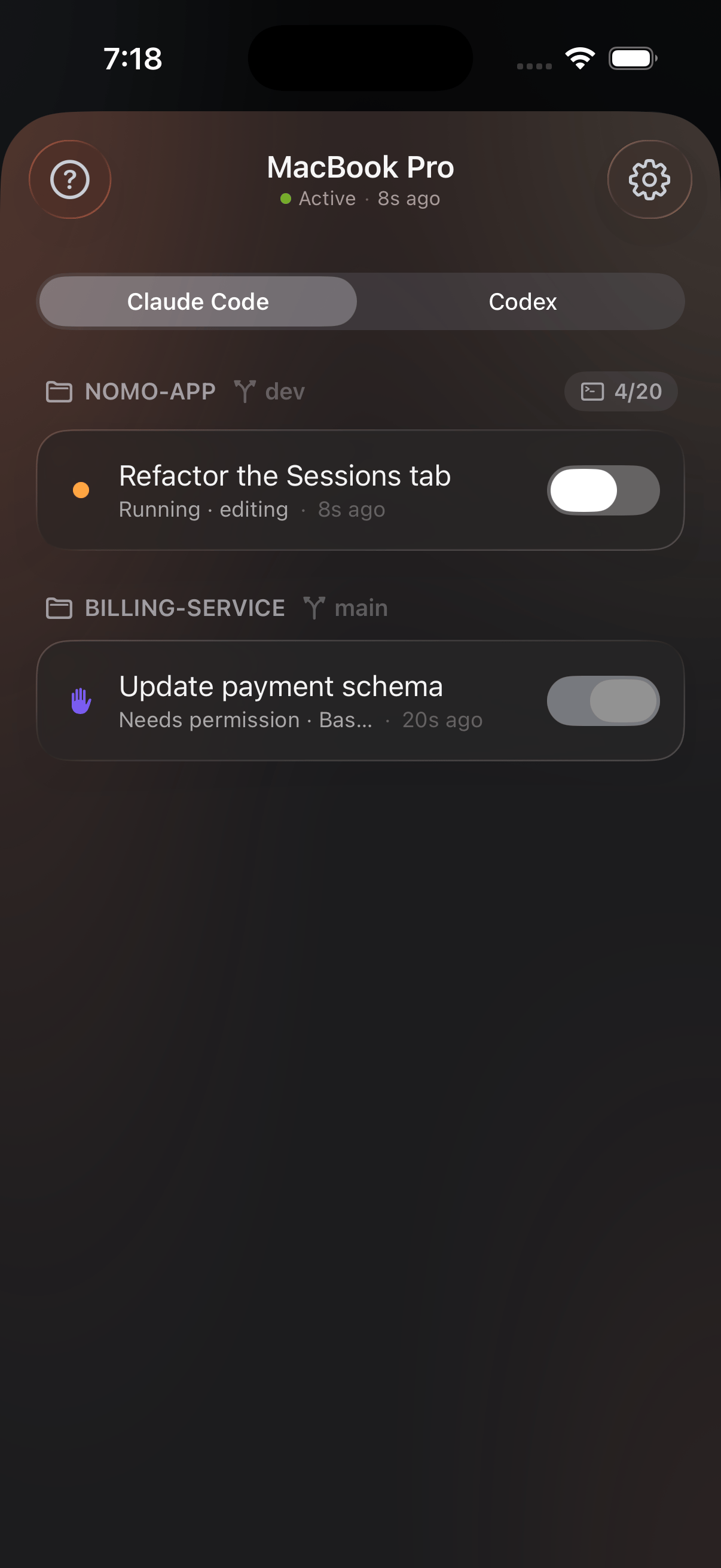
Inside a computer: agent tabs, two project folders with their branches, and the 4/20 session count. The second row is asking permission — violet hand, and its island switch is on and greyed while the prompt waits.
What a session row shows
left edge
A dot, a hand, a checkmark, or a spinner. Colour is the signal — see the table
below.
The agent’s own summary of what it’s working on, so it changes as the session
moves between tasks. It is not the folder name — though it falls back to
the folder name when the agent hasn’t summarised anything yet.
The state, plus what it’s doing right now when the agent reported it —
Running · editing, Needs permission · Bash.Time since the last event, not how long the session has been running.
2m ago means Nomo last heard from it two minutes ago. Elapsed run time only
appears on the Dynamic Island.Session states
Once a prompt has been settled, the row picks up a small caption saying how:
Allowed, Denied, Always allowed, Answered, or an honest failure like
Expired — continue on your computer. The full list is in
Answering from your phone.
Rows are ordered by most recent activity. Nomo never hides a row — the list
mirrors what the relay holds, exactly.
Tap a row for detail
Tapping the text side of a row expands it. Everything here is selectable, and labelled with a symbol rather than a word:- Model —
Fable,Opus 4.8,GPT 5.6 Sol. Hidden when the agent didn’t report one. - Full title — untruncated.
- Folder and session ID — the first eight characters, monospaced.
- The pending question, in full, when there is one.
- View plan — opens the plan. Answerable for Claude Code, read-only for Codex, and for OpenCode usually the session’s todo list rather than a document.
- Open on Mac — focuses that session’s terminal window on your Mac. Only appears when Nomo has a direct local network link, and never on OpenCode sessions, which have no window of their own.
How many
The first two are set on Nomo’s side rather than compiled into the app, so they
can move without an app update. The session count shows as an
N/20 chip on
the first Sessions card, and the computer count as an N/5 chip on the tab.
Both turn orange at the cap.
Pairing a sixth computer fails with Computer Limit Reached. Forget one you
no longer use and try again — computers you’ve already paired are never revoked
to make room.
When a computer is at its session cap, Nomo sheds finished and long-silent rows
first. A genuinely new session is refused rather than pushing a live one off —
unless it arrives holding a permission prompt, which always wins.
Rows that disappear
Finished and silent sessions retire on their own, roughly an hour after their last real activity. A row vanishing by itself is normal and means nothing went wrong. A pairing that’s been revoked — you re-paired that Mac, or ran/nomo-cc:unpair on it — is a different thing. Nomo waits for a sustained
run of failures before believing it, then flips the card to No longer paired
with a one-tap Remove, and clears it a minute later. It won’t silently drop
a computer over a flaky minute of Wi-Fi.