Free and Pro
In the widget gallery, a Pro widget’s description starts with 👑 Nomo Pro.
Without Nomo Pro, you can still add a Pro widget. It shows a faded preview with
Nomo Pro and Unlock on top. Tap it to open Nomo Pro in the app.
Free widgets
Nomo status
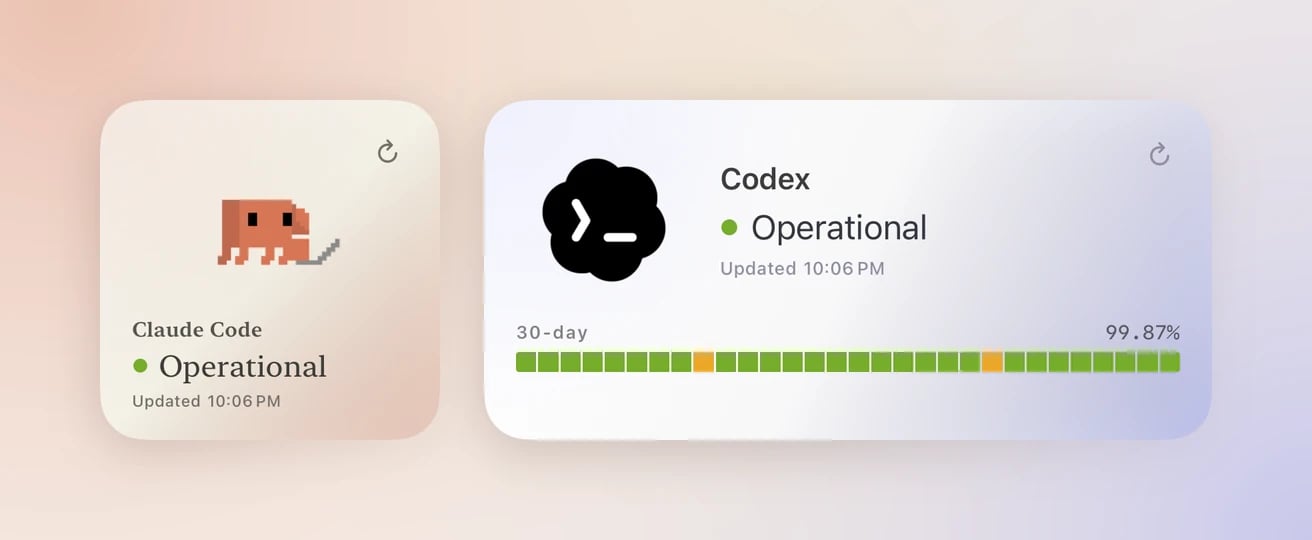
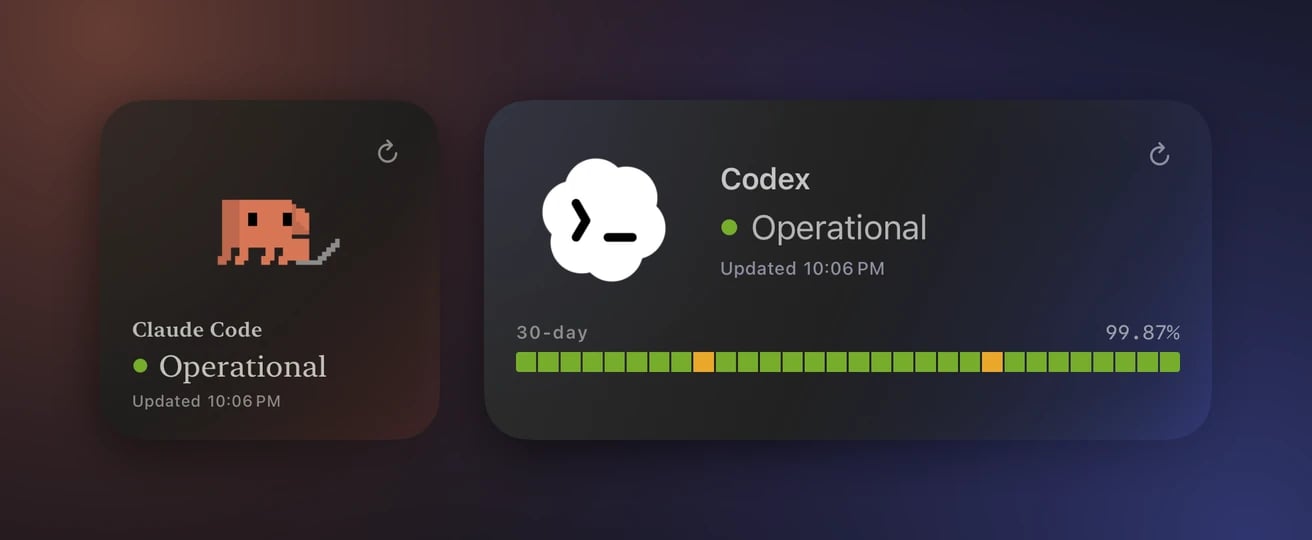
Nomo status in Small and Medium.
OperationalDegradedPartial outageMajor outageMaintenance
Unavailable.
What you need first: nothing. No account and no sign-in.
Set it up:
- Add the widget. See Widget.
- Touch and hold the widget.
- Tap Edit Widget.
- Tap Provider and pick one: Claude, OpenAI, Cursor, xAI, Antigravity, Kimi or DeepSeek.
- Tap Service and pick one, such as Claude Code.
- Tap outside the widget to finish.
Nomo Usage
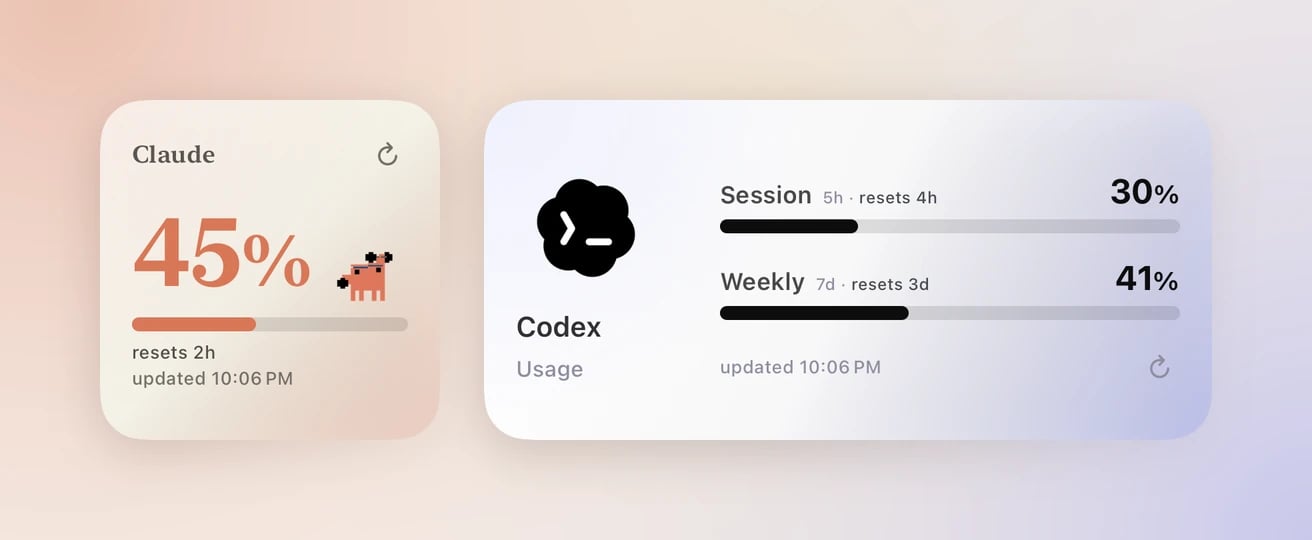
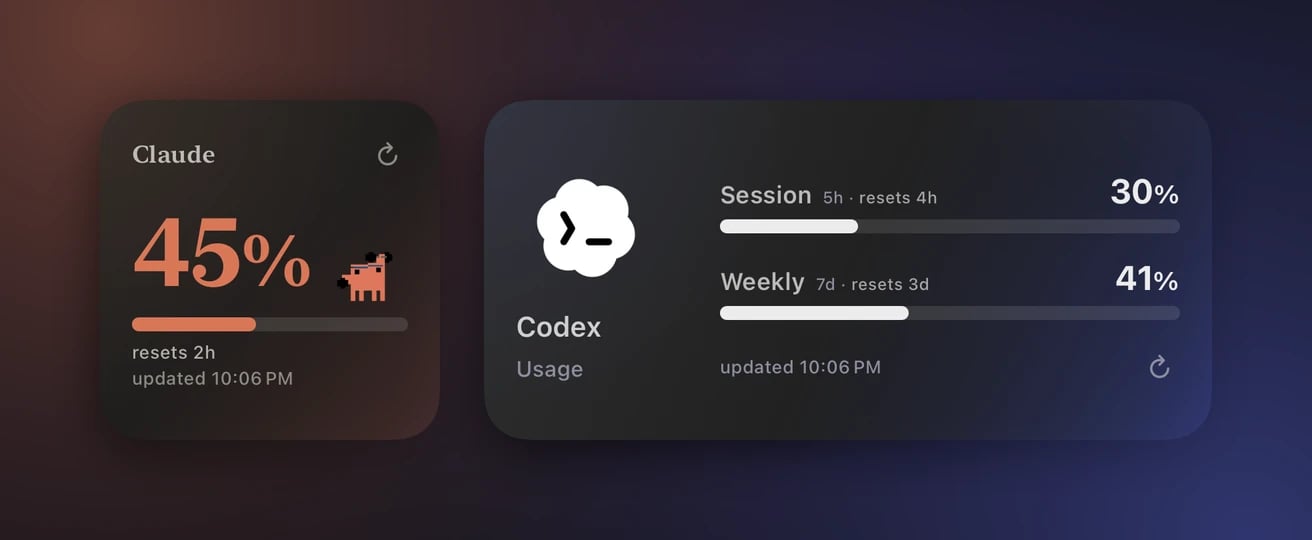
Nomo Usage in Small and Medium.
The bars turn amber at 70% and red at 90%. If your plan has no 5-hour limit,
the widget shows
No session limit instead.
What you need first: a connected account, such as Claude or Codex. Open the
Providers tab, tap the provider, and connect it. See Usage. Until
then, the widget shows Not connected.
Set it up:
- Add the widget. See Widget.
- Touch and hold the widget.
- Tap Edit Widget.
- Tap Provider and pick one, such as Codex.
- Tap Account and pick one. Default follows your Default account in the app.
- Tap Small widget style and pick one. Big percentage shows the number large. Big animation shows the animated icon large.
- Tap Small widget focus and pick the window the Small size shows. Automatic picks it for you. The choices depend on the provider.
- Tap outside the widget to finish.
Pro widgets
Nomo Pro adds five widgets to the free ones. Each one answers a question you’d otherwise open the app for.- Nomo Pace: will my usage last until it resets?
- Nomo Activity: how many days in a row have I coded with an agent?
- Nomo Accounts: which of my accounts has the least left?
- Live Agents: what are my agents doing right now?
- Nomo Tokens: how many tokens did I use, and on which models?
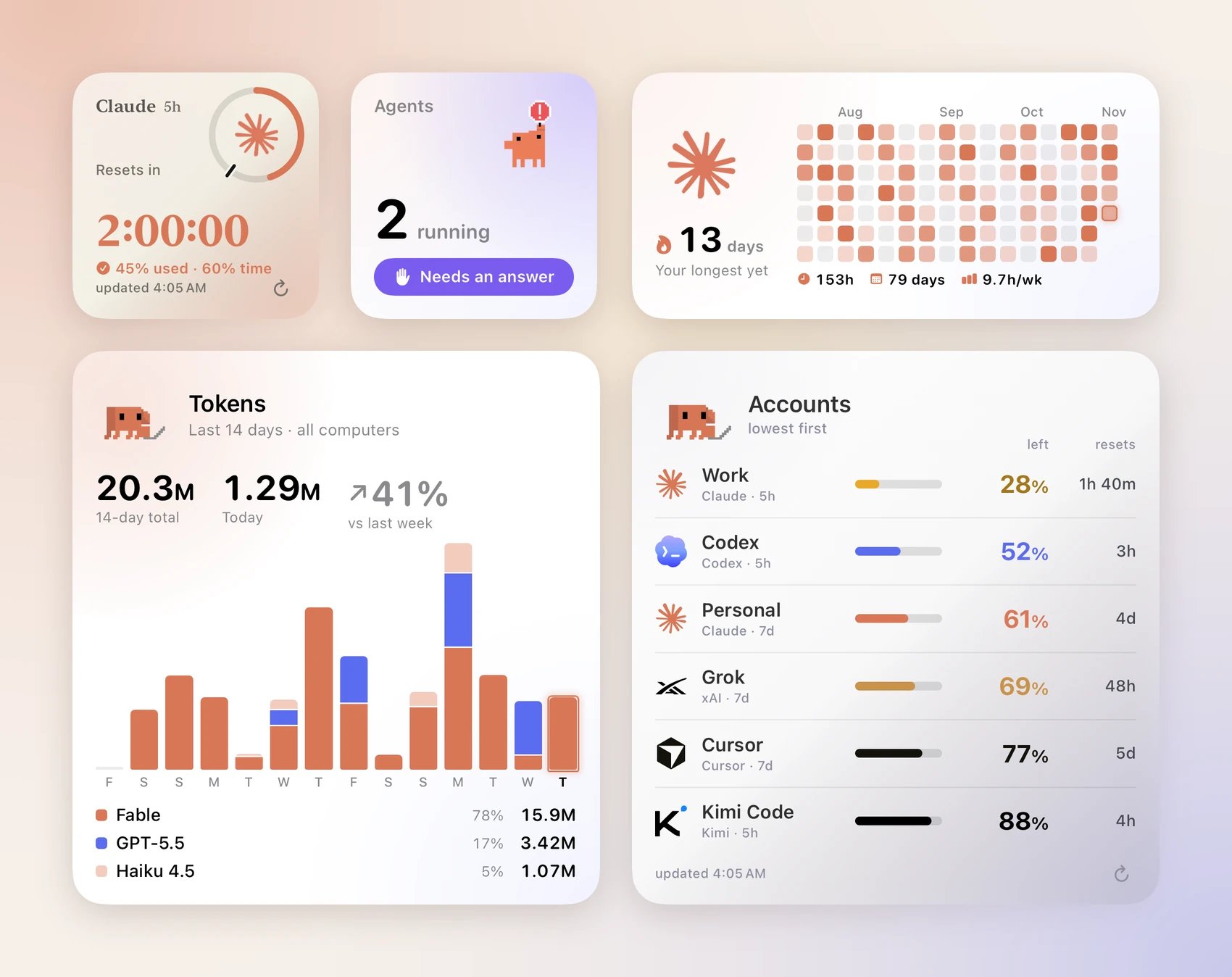
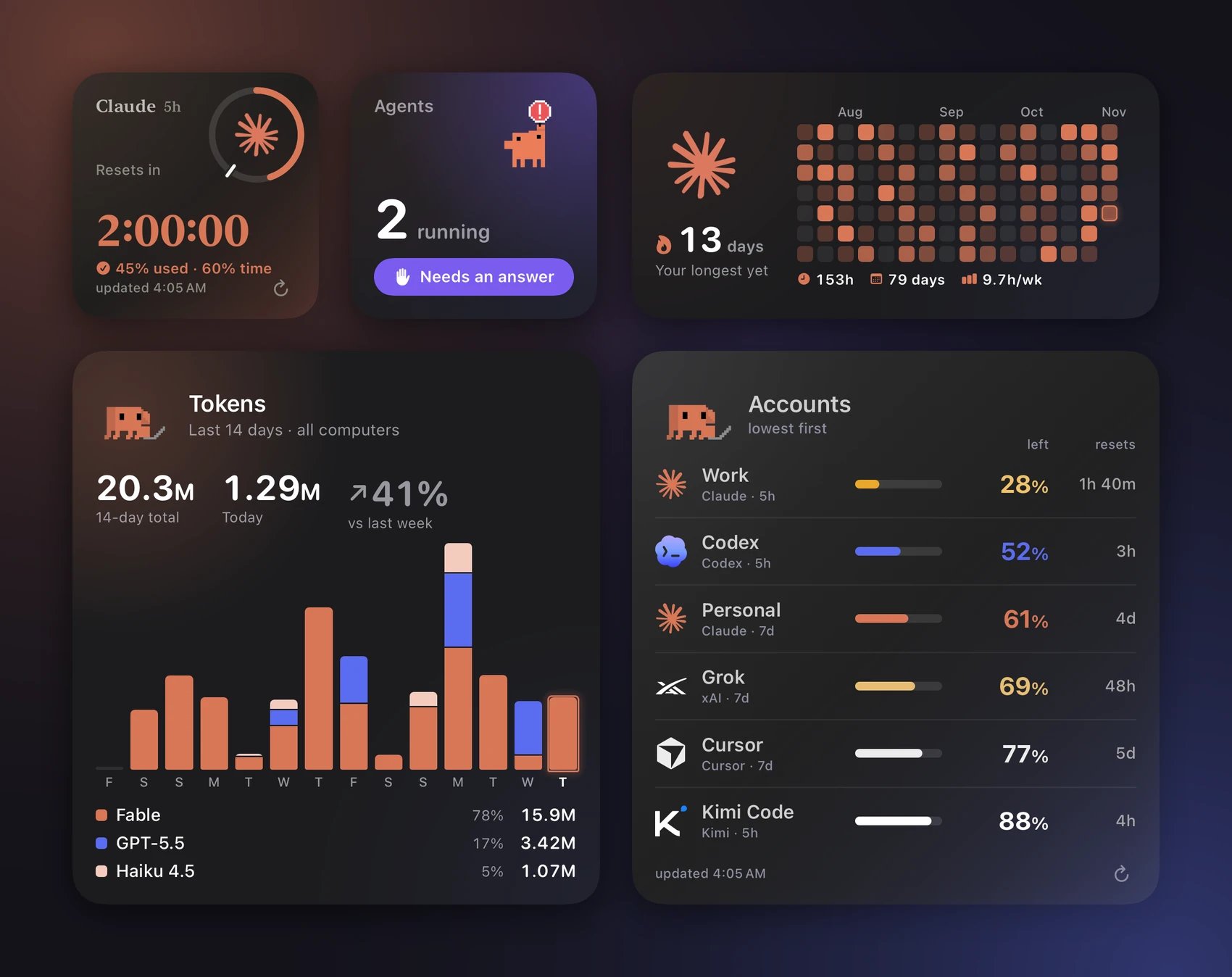
All five Pro widgets on a Home Screen: Nomo Pace, Live Agents, Nomo Activity, Nomo Tokens and Nomo Accounts.
Nomo Pace
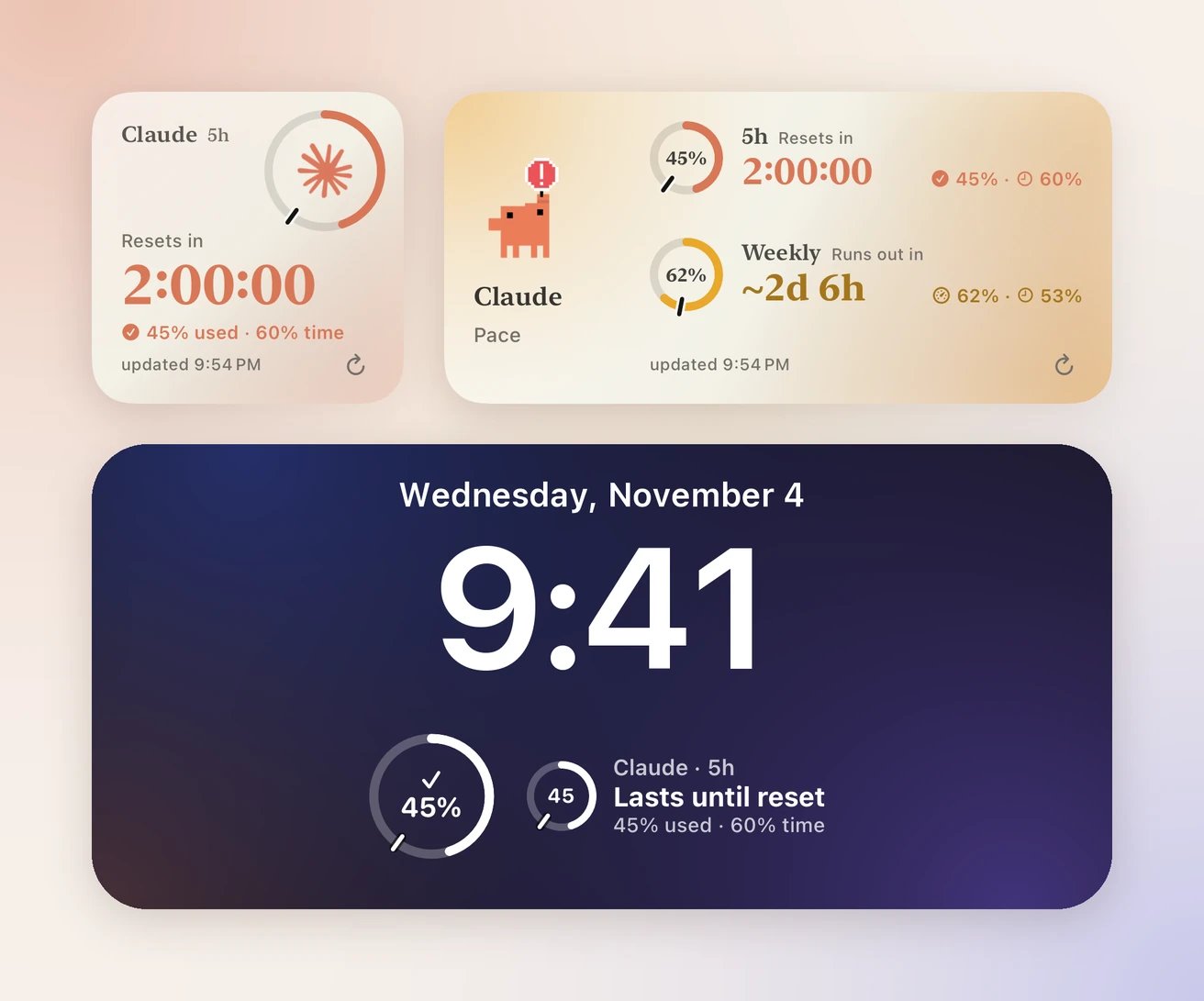
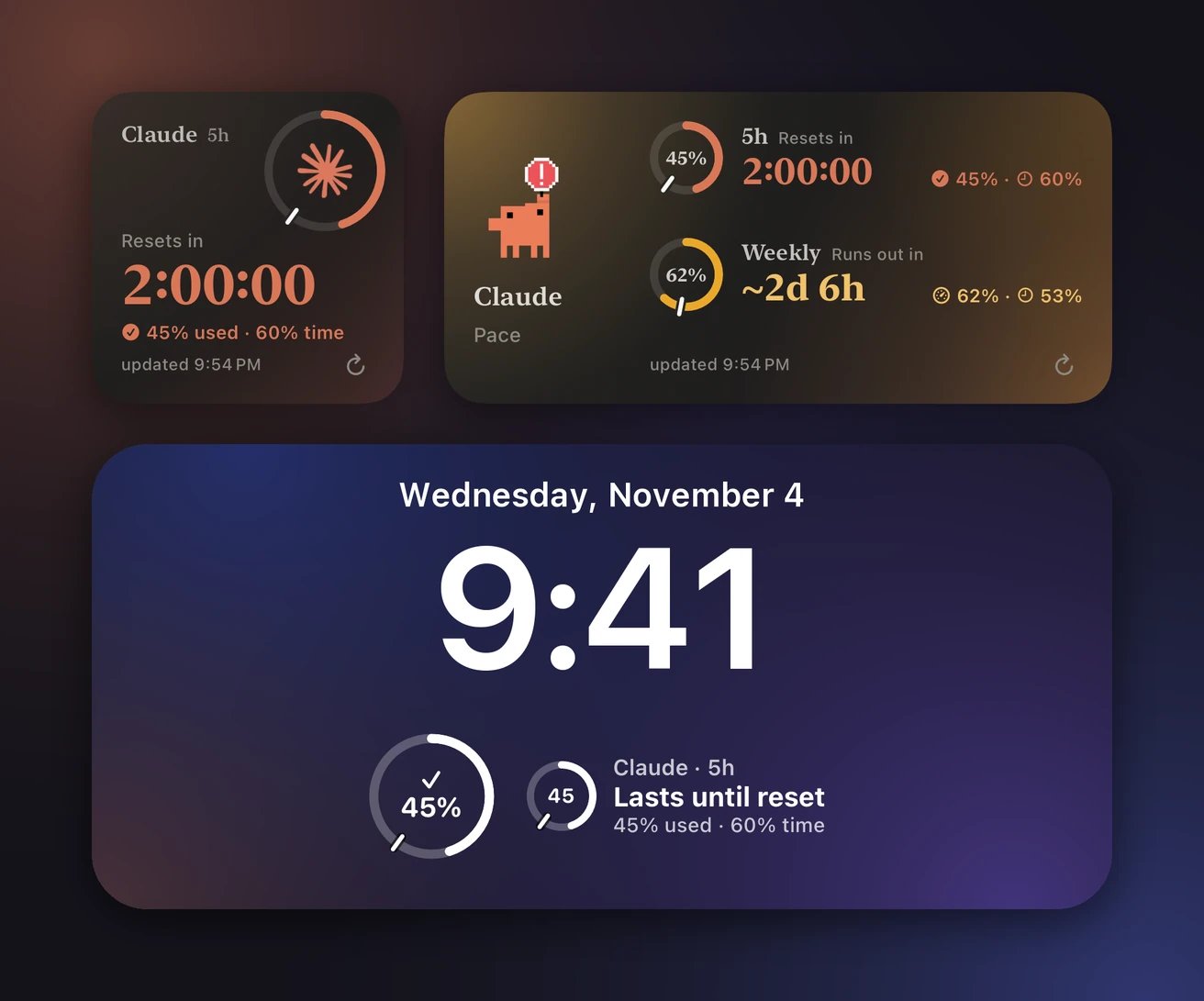
Nomo Pace in Small and Medium, and on the Lock Screen.
- used: how much of the limit you’ve used.
- time: how much of the time window has gone by.
45% used · 60% time. If used is lower than time, you’re fine.
The widget shows Resets in and a countdown to the reset.
If used is higher than time, you’re going too fast. The widget shows Runs out
in and a countdown to when you’d run out. A ~ in front means it’s an
estimate. The number turns amber.
You’ll also see:
- Too early to tell, right after a window starts. There isn’t enough to go on yet.
- Maxed out, when a window is at 100%. The countdown is to the reset.
- Pace isn’t available for this plan, when the provider doesn’t say when the limit resets.
Every ring fills with how much you’ve used. The small tick shows where you’d
be if you used it evenly. If the fill is behind the tick, you’re fine.
Used or Left: Nomo Pace follows Settings → Usage → Show usage as. With
Left, the line reads
55% left · 40% time left. The ring drains instead:
the fill shows what’s left, and the tick shows the time left. If the fill goes
past the tick, you’re fine. The numbers on every size flip too.
What you need first: a connected account, such as Claude or Codex. Open the
Providers tab, tap the provider, and connect it. See Usage.
Set it up:
- Add the widget. See Widget.
- Touch and hold the widget.
- Tap Edit Widget.
- Tap Provider and pick one, such as Claude.
- Tap Account and pick one. Default follows your Default account in the app.
- Tap Window and pick one. Automatic uses the 5-hour window if your plan has one, and the weekly window if not. This changes the Small and Lock Screen sizes.
- Tap outside the widget to finish.
Nomo Activity
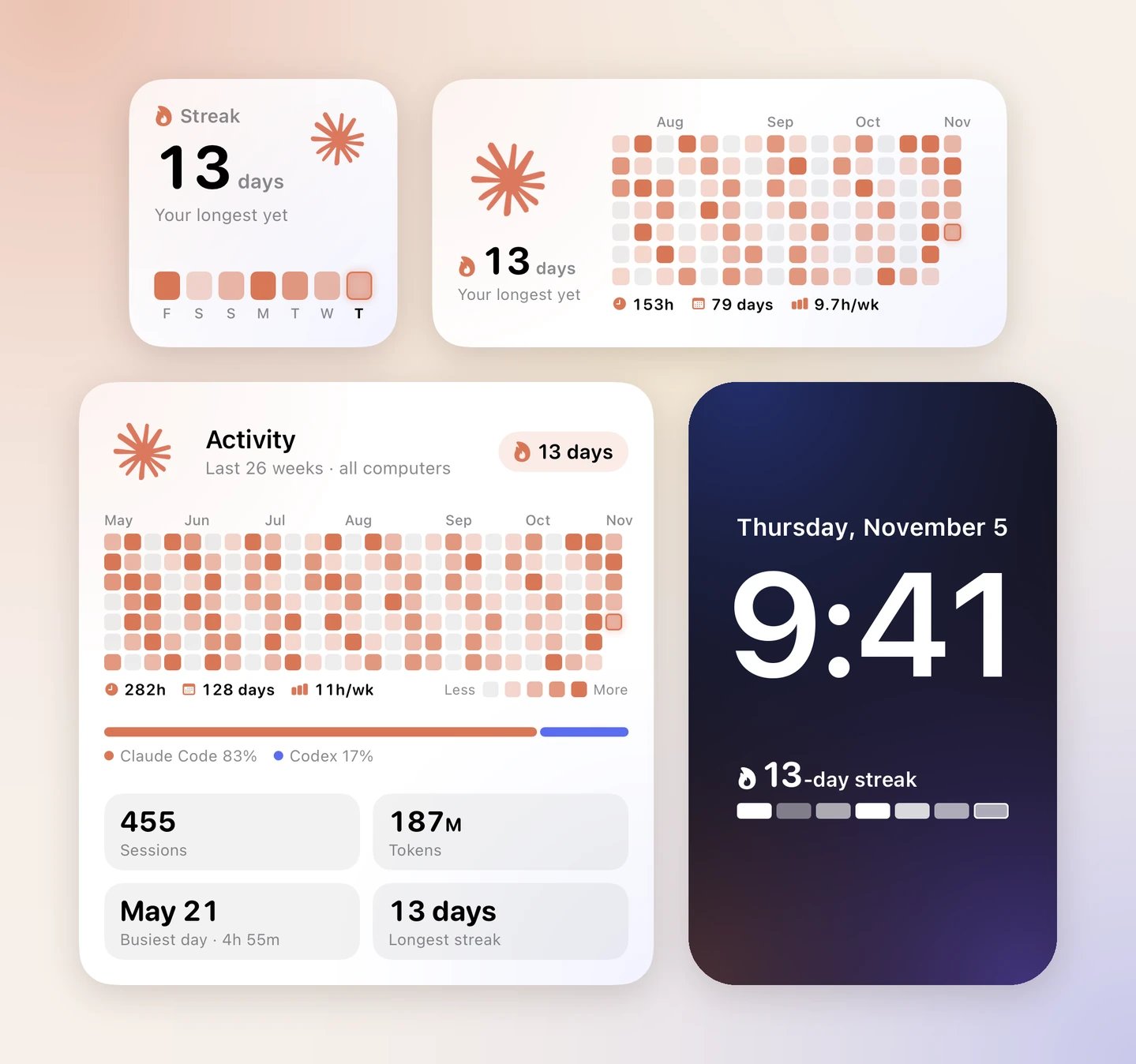
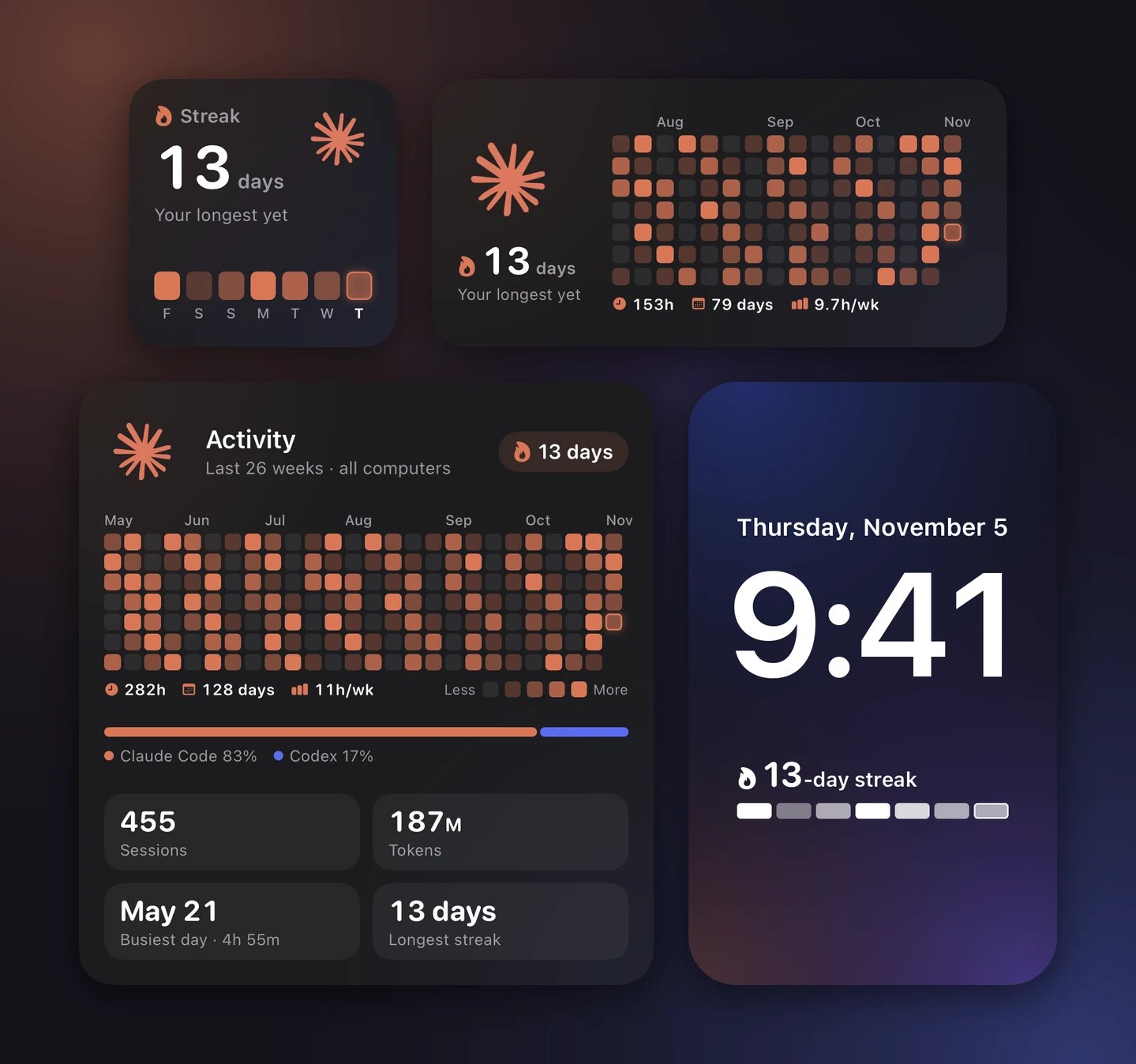
Nomo Activity in Small, Medium and Large, and on the Lock Screen.
The three stats under the map cover the weeks the map shows:
- A clock: your active hours, such as
153h. - A calendar: how many days you were active, such as
79 days. - A bar chart: your average per week, such as
9.7h/wk.
- The Nomo plugin on your computer, version 2.4.0 or later. See Install and Updating.
- That computer paired with Nomo. See Pairing.
- Add the widget. See Widget.
- Touch and hold the widget.
- Tap Edit Widget.
- Tap Character and pick one: Automatic, Clawd, Codex, Grok Bot, Antigravity, Kimi, DeepSeek, Cursor or OpenCode.
- Tap outside the widget to finish.
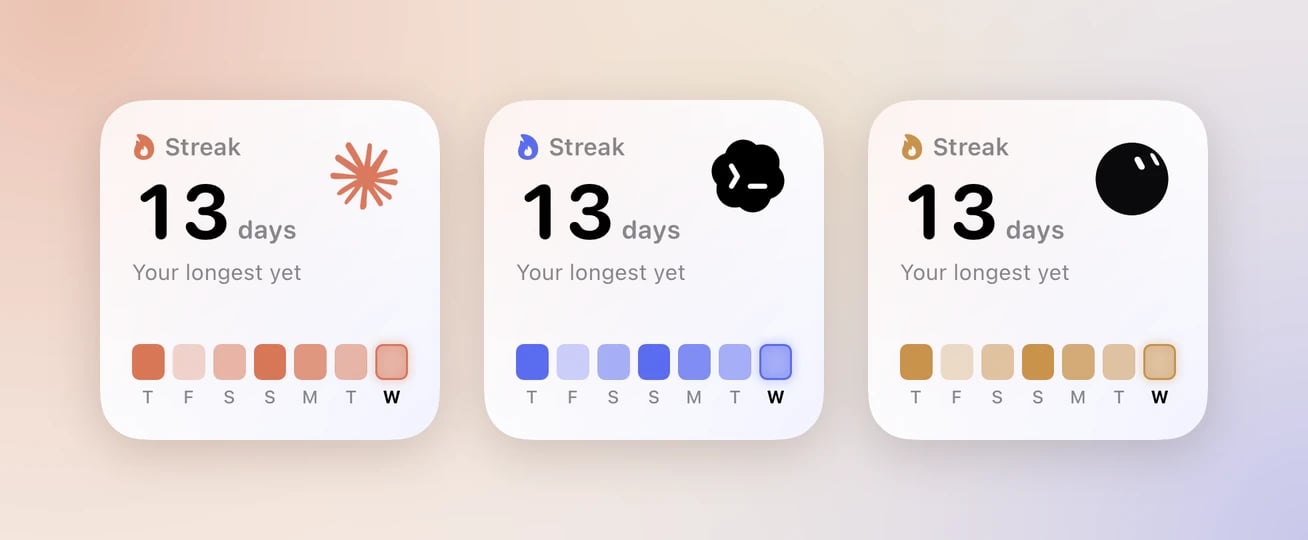
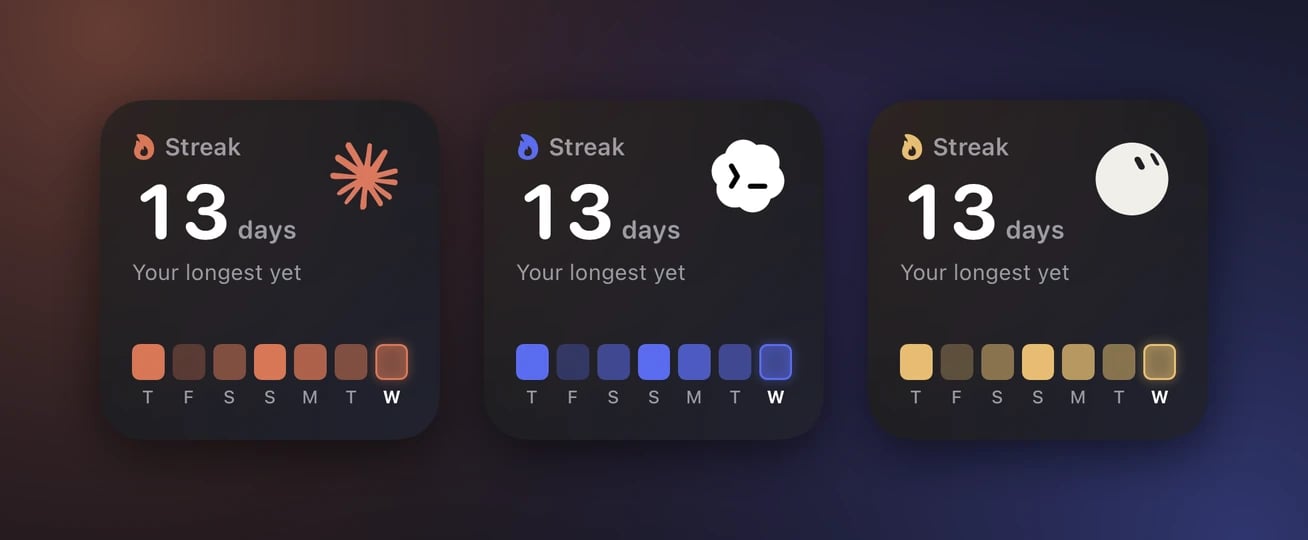
Nomo Activity with Clawd, Codex and Grok Bot.
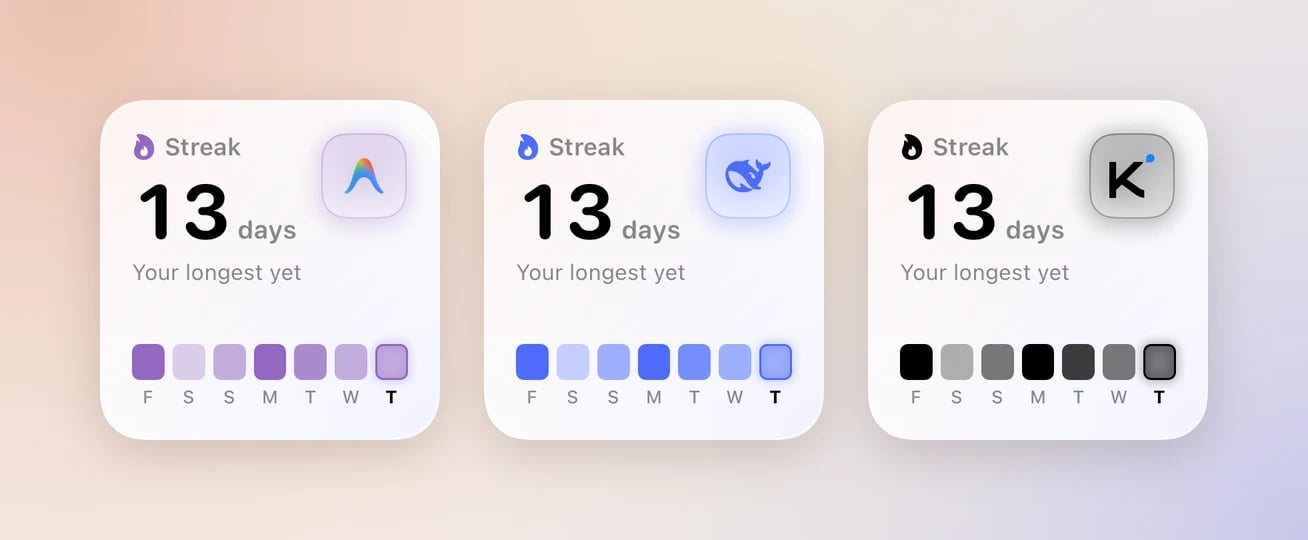
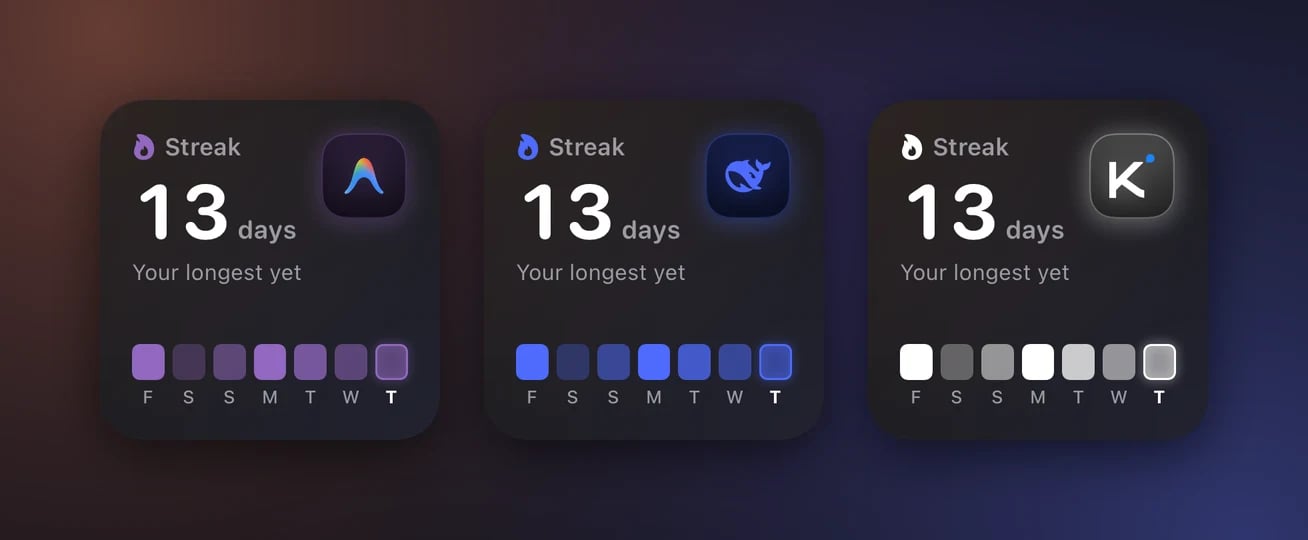
Nomo Activity with Antigravity, DeepSeek and Kimi.
Nomo Tokens
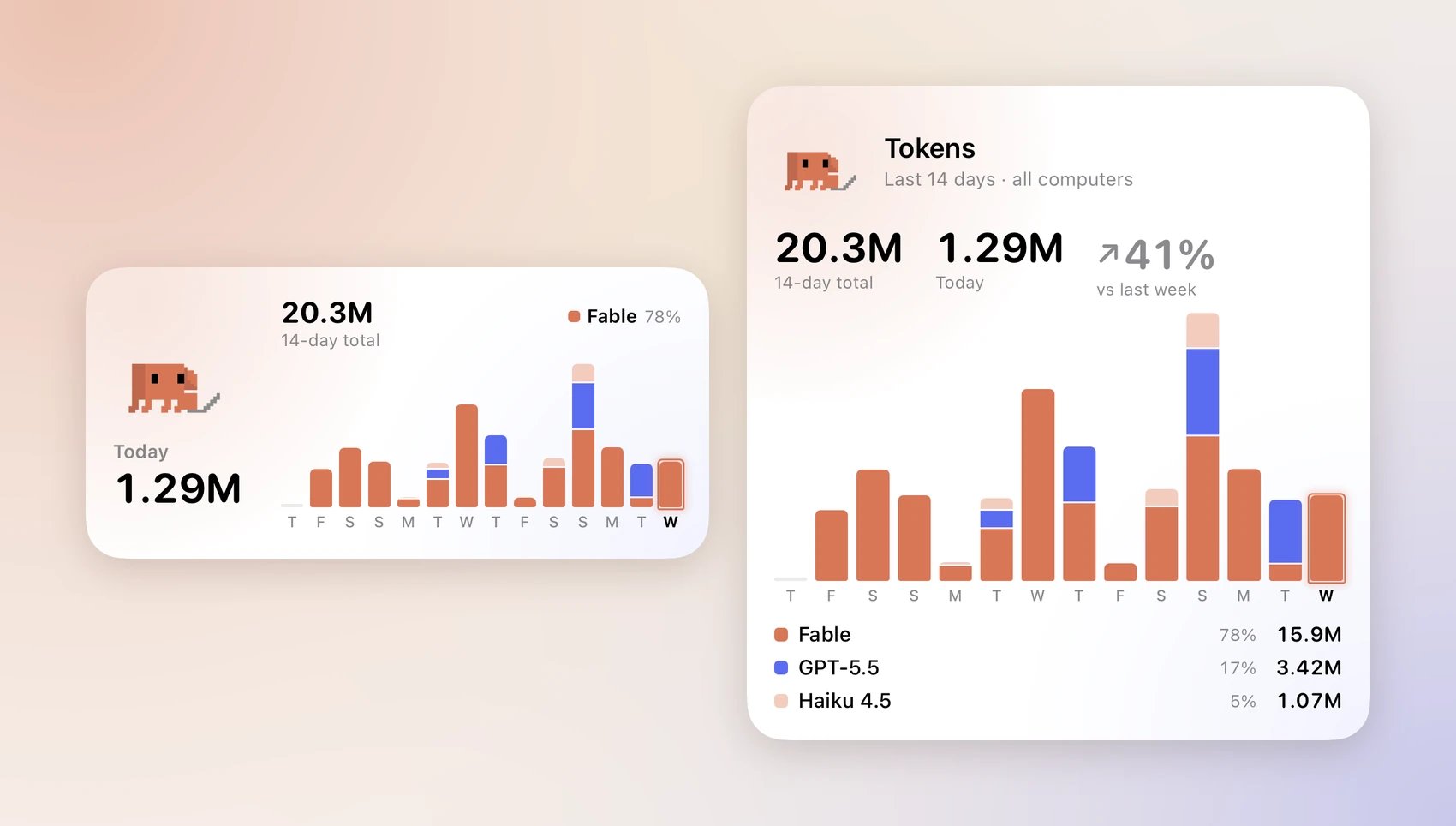
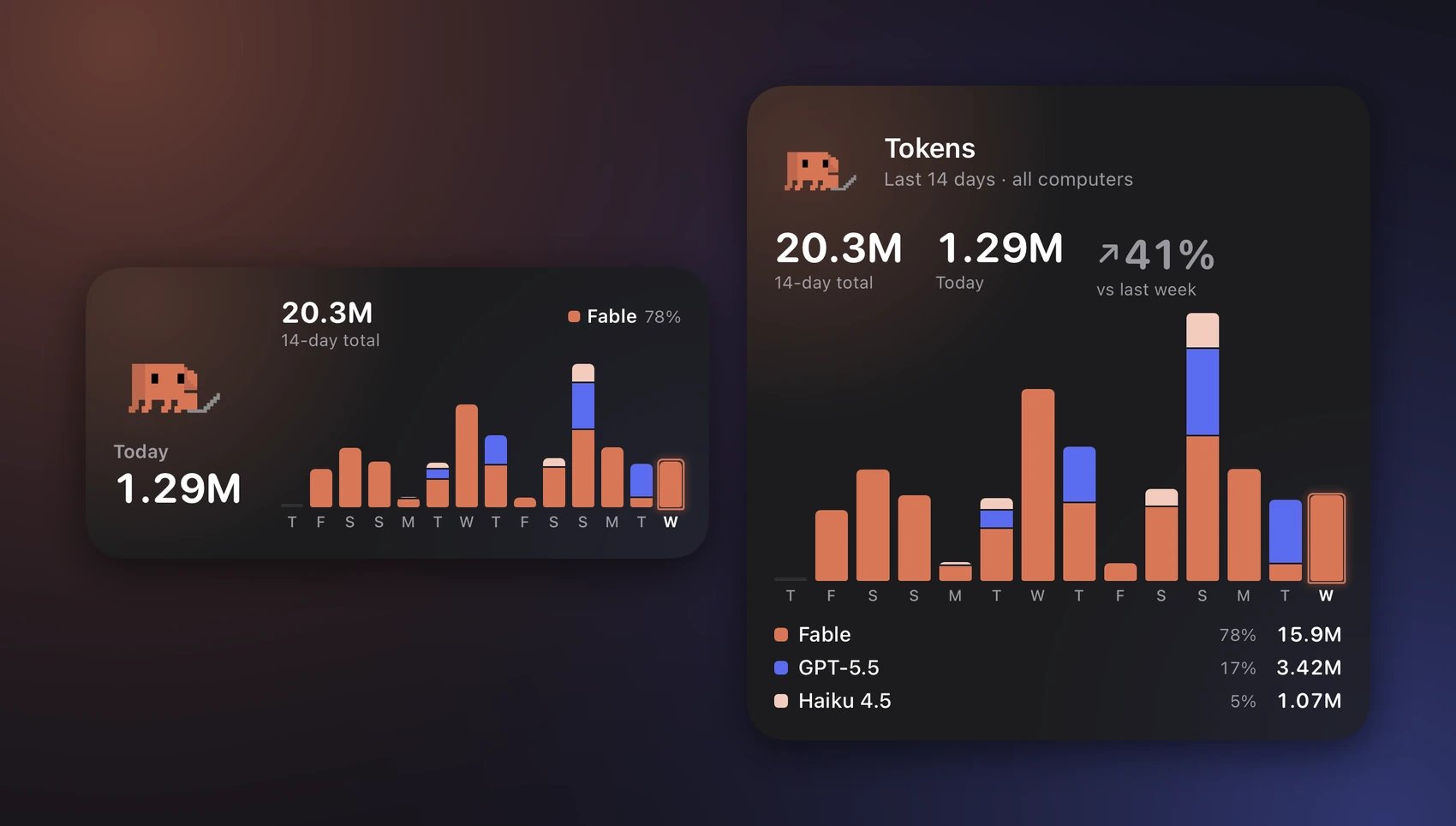
Nomo Tokens in Medium and Large.
Each model keeps one color everywhere: Claude models are coral, GPT blue, Grok
gold, Gemini purple, and other models grey.
What you need first: the same as Nomo Activity: the Nomo plugin on a
paired computer. See Nomo Activity.
Set it up:
- Add the widget. See Widget.
- Touch and hold the widget.
- Tap Edit Widget.
- Tap Character and pick one, the same choices as Nomo Activity.
- Tap outside the widget to finish.
Nomo Accounts
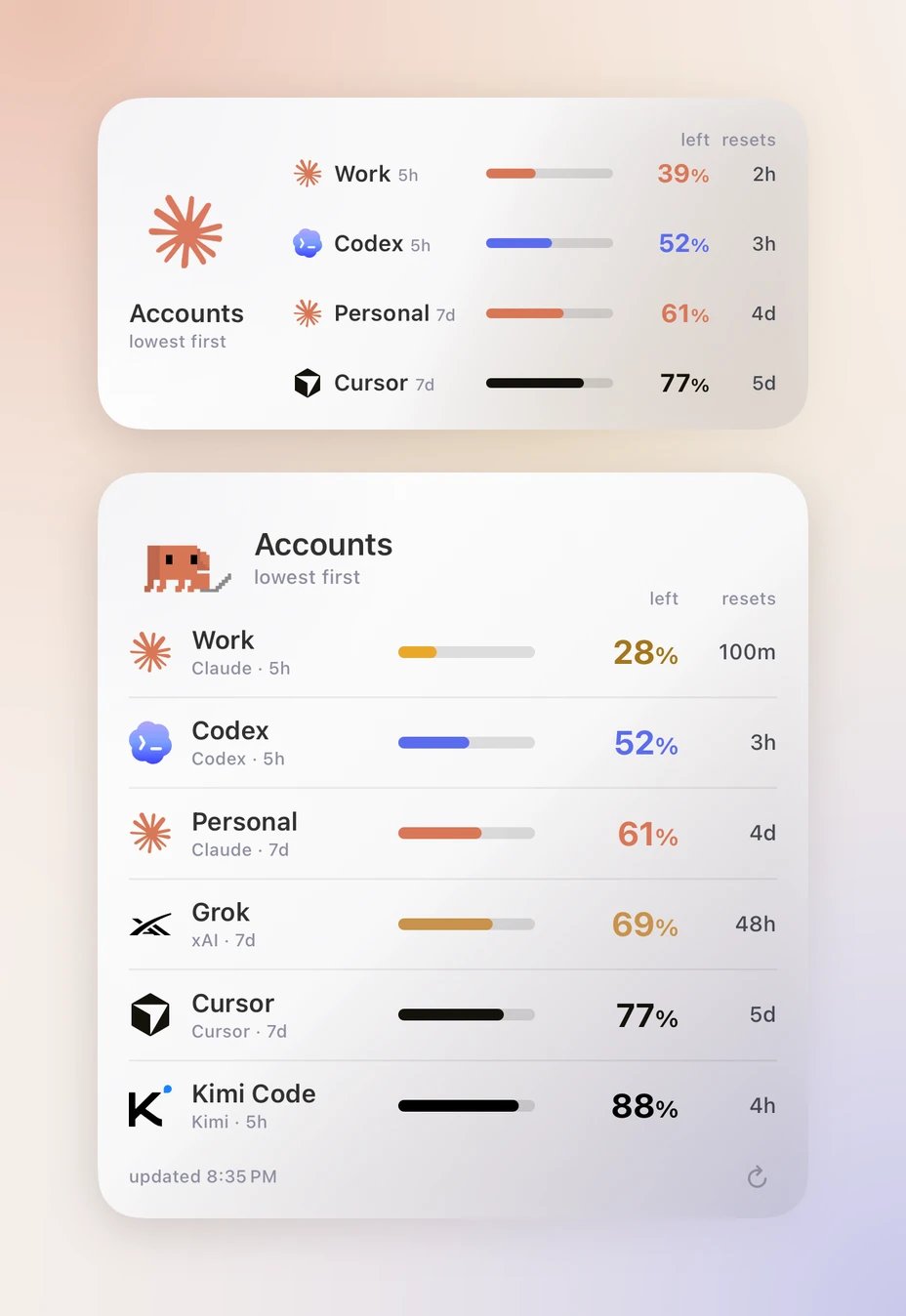
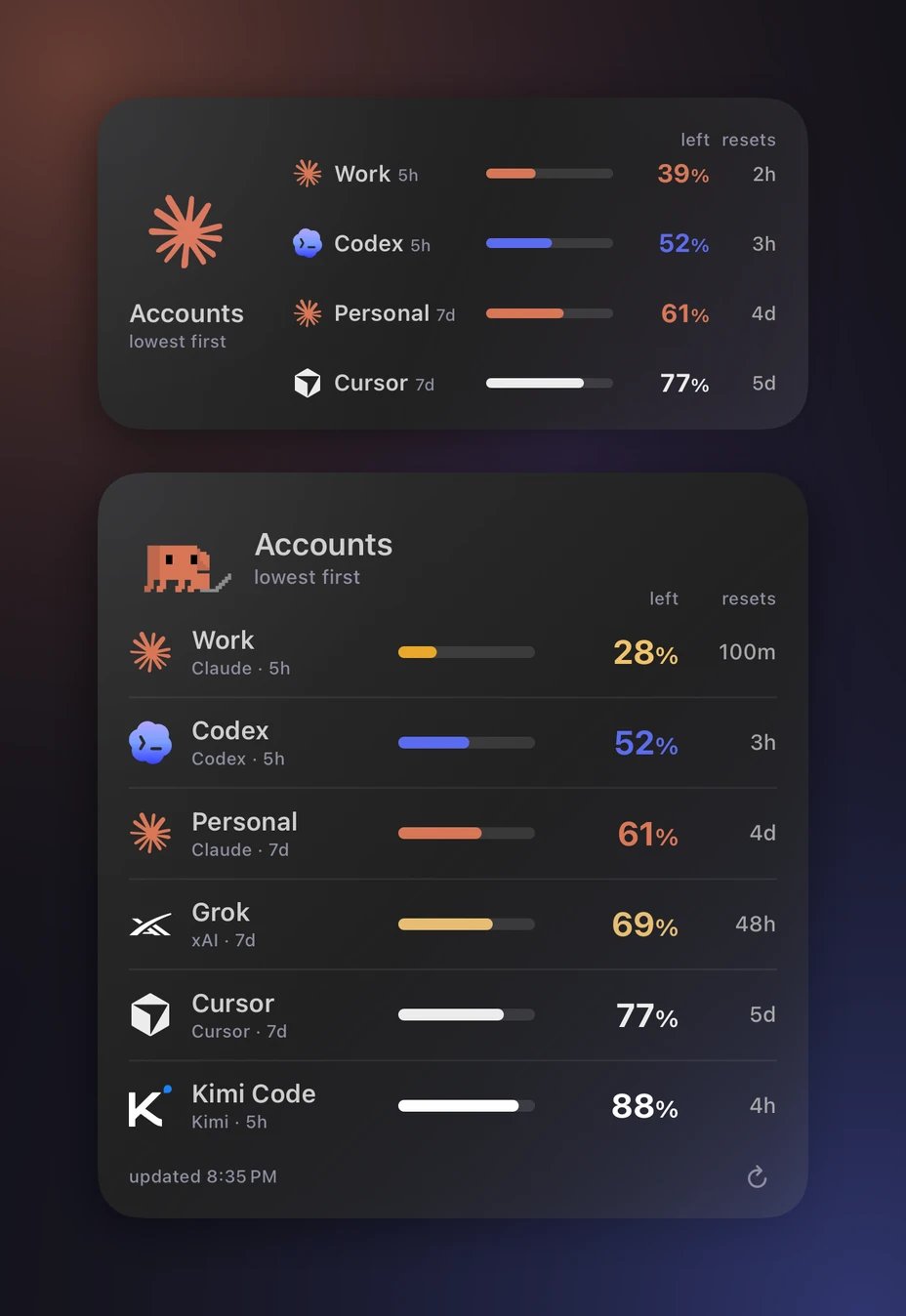
Nomo Accounts in Medium and Large.
- Medium shows 4 rows. Large shows 8.
- If you have more accounts than that, the last row says how many more, such as
+3 more. - An account that needs you to sign in again stays on the board, at the bottom, with Reconnect in Nomo. It never disappears.
+3 more row, to open the Providers tab. Without
Nomo Pro, a tap opens Nomo Pro.
Live Agents
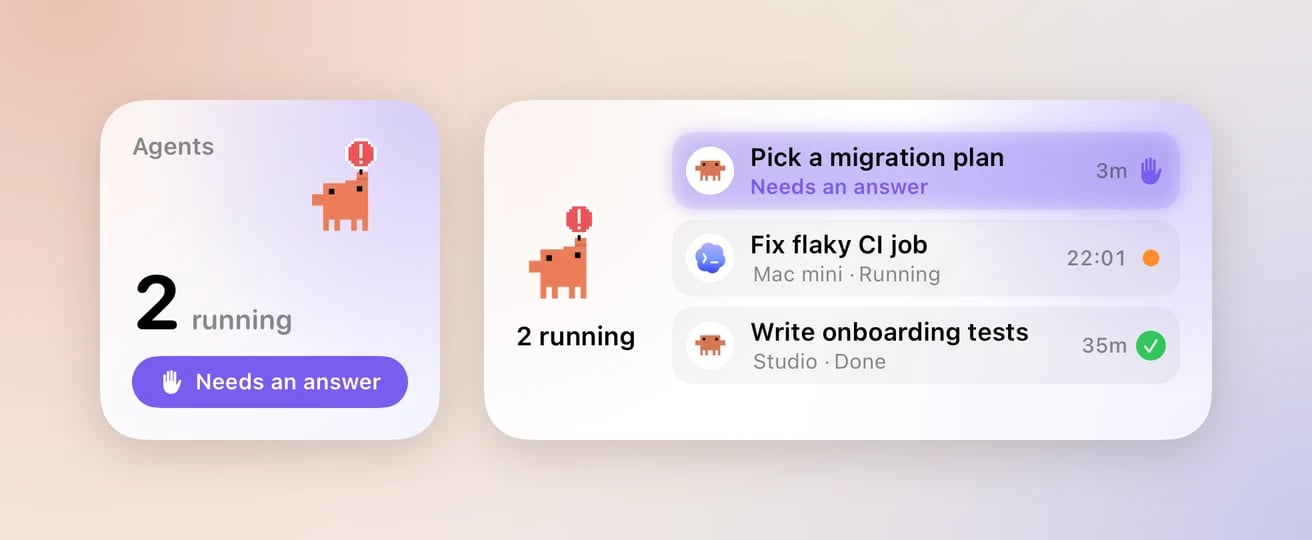
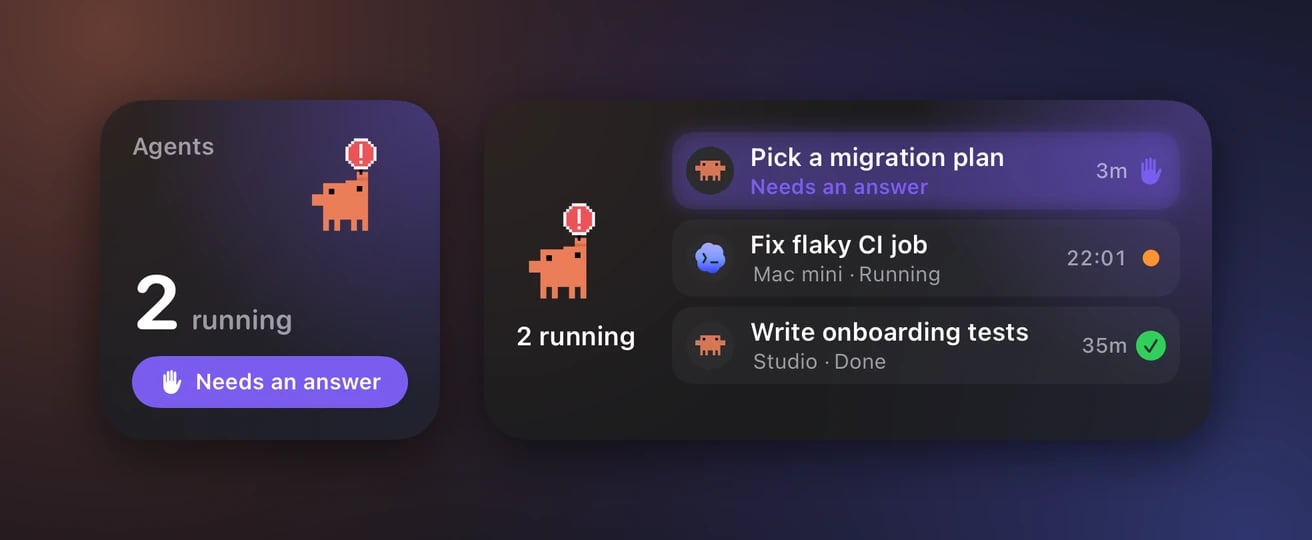
Live Agents in Small and Medium. The violet row needs your answer.
These match the Sessions tab.
- Small shows how many sessions are running. When one needs you, a violet button says so.
- Medium shows up to 3 sessions. The ones that need you come first.
- Add the widget. See Widget.
- Touch and hold the widget.
- Tap Edit Widget.
- Tap Character and pick one, the same choices as Nomo Activity.
- Tap outside the widget to finish.
Activity screen and Wrapped
The Activity screen shows your streak and your tokens in full. It also makes a Wrapped card you can share.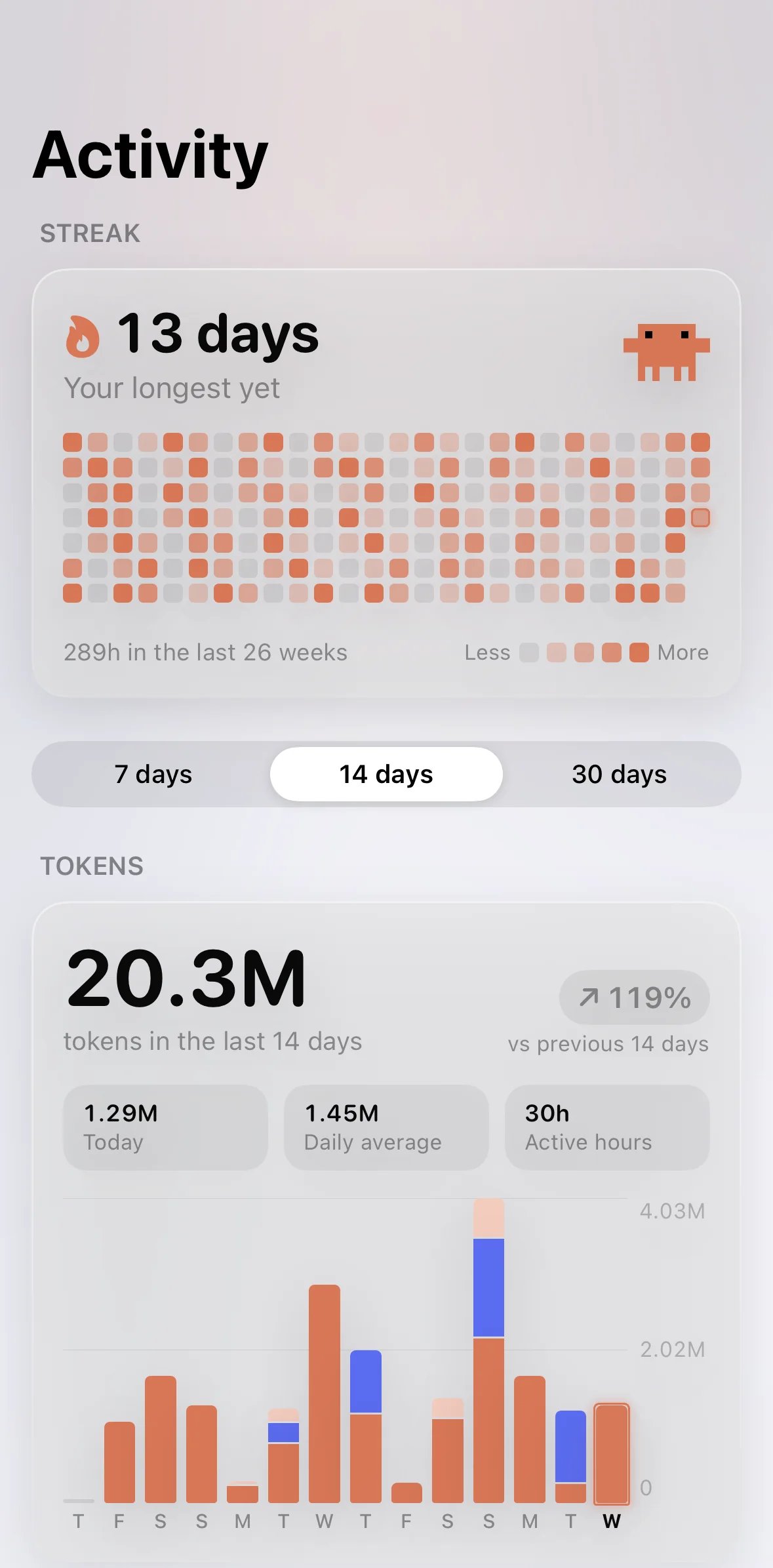
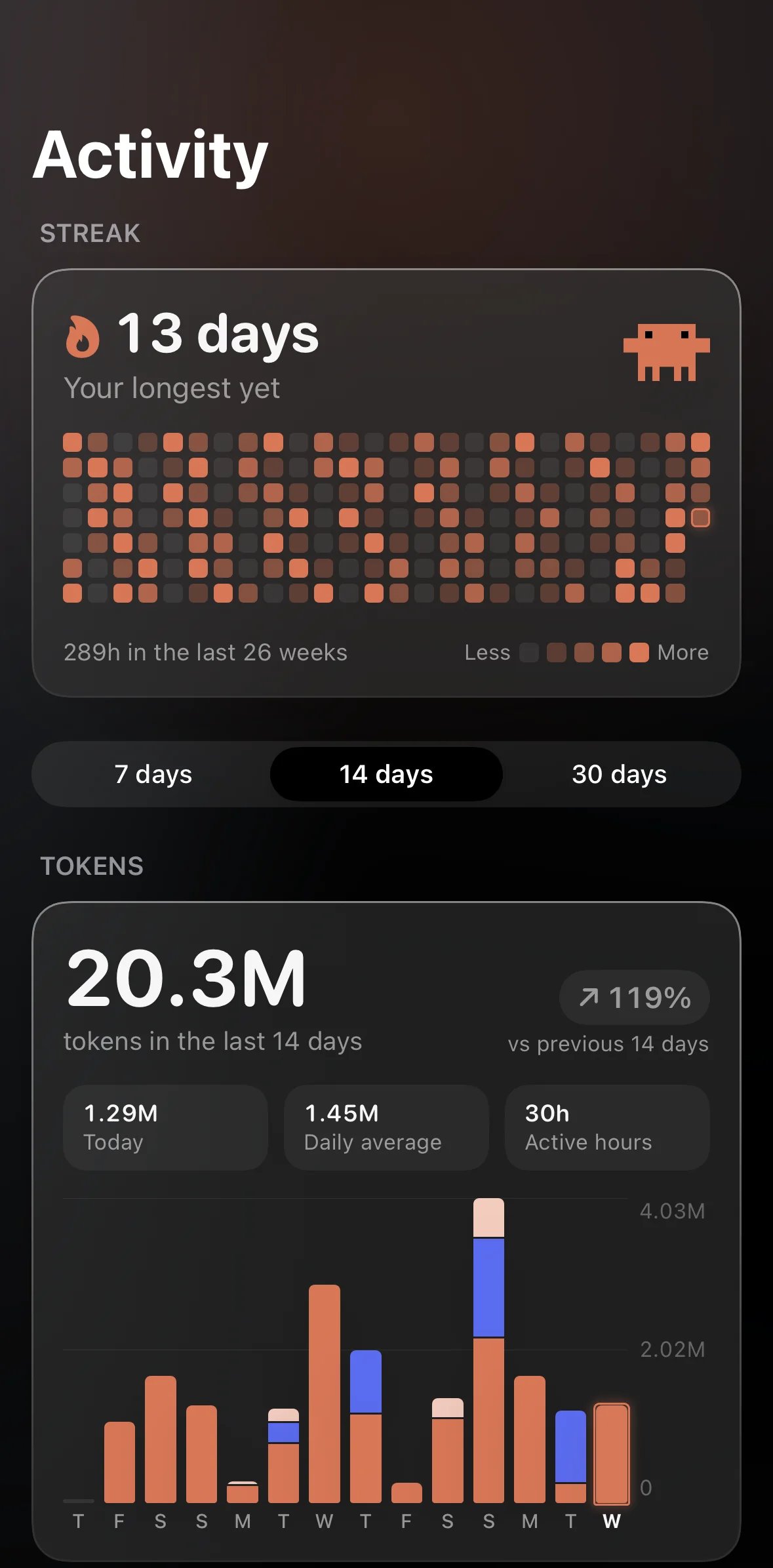
The top of the Activity screen: your streak, the 7 / 14 / 30 days switch and the tokens chart.
- Open Nomo.
- Tap the Sessions tab.
- Tap the streak bar just above the tab bar. On iOS 26.0 or earlier, tap the Activity card at the top of the list instead.
- Streak: your streak and a map of the last 26 weeks, with the same three stats as the widget.
- A switch for 7 days, 14 days or 30 days. The chart moves from one range to the next when you switch.
- Tokens: a chart of your daily tokens, stacked by model, with Today, Daily average, Active hours and the change from the previous period.
- By model: a table with Input, Output, Cache and Total for each model.
The streak bar
On iOS 26.1 or later, the Sessions tab has a small bar that floats just above the tab bar. It shows your streak, this week’s tokens and the last 7 days as mini bars.- When you scroll, it shrinks and sits next to the tab bar.
- Tap it to open the Activity screen.
When the bar is shrunk, these say Pair a computer, No sessions yet and
Update plugin.
The bar needs Nomo Pro. Without it, you won’t see the bar.
When a new version of Nomo is out, the update bar takes this spot instead.
Update Nomo, or tap × on the update bar, to get the streak bar back.
On iOS 26.0 or earlier, there’s no bar. The streak card sits at the top of the
Sessions list instead.
Wrapped
Wrapped turns your week, month or year into one image you can share.- On the Activity screen, scroll to the bottom.
- Tap Your Wrapped.
- Tap Week (the last 7 days), Month (the last 30 days) or Year (this calendar year).
- Tap Share, then pick where to send it.
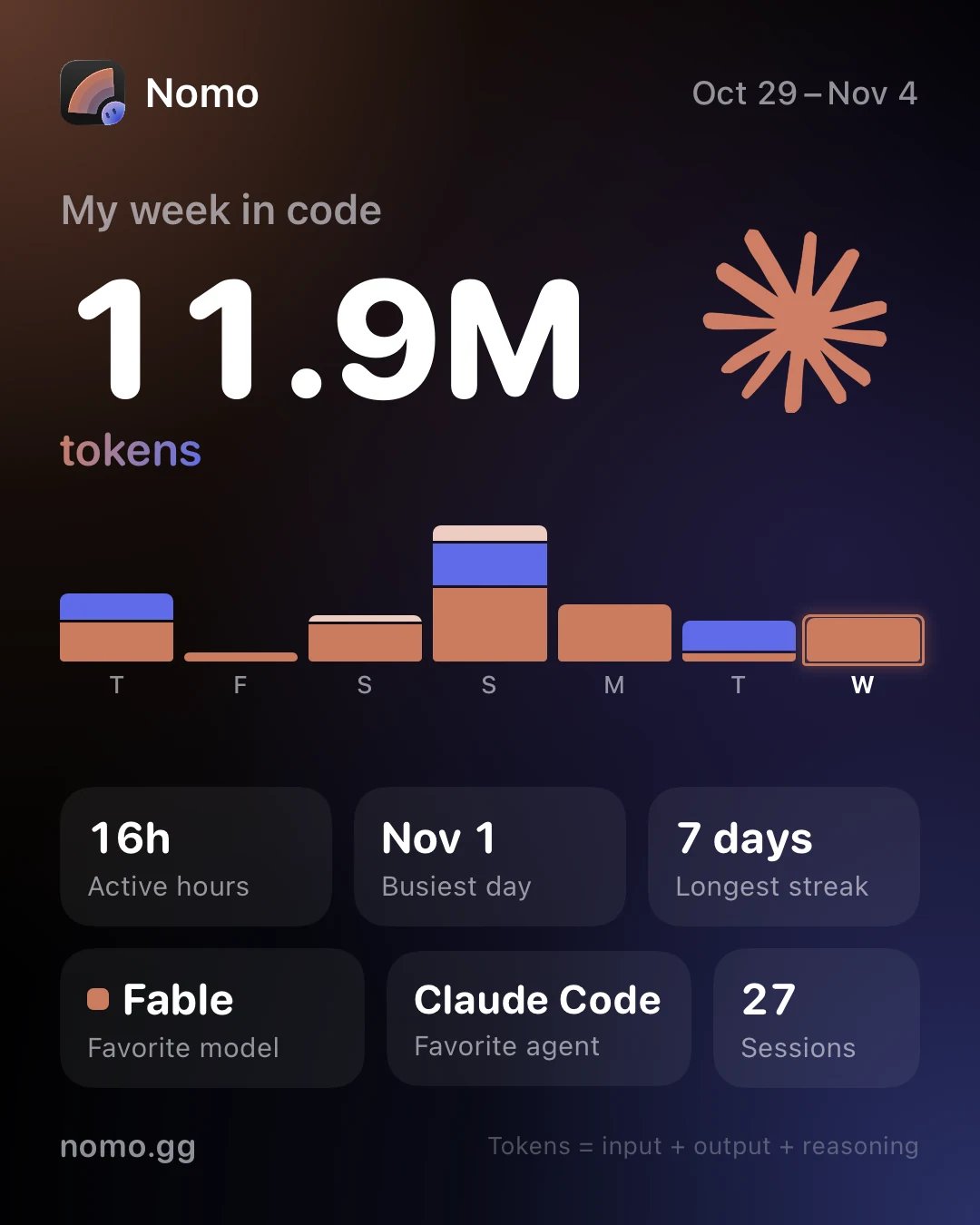
A week's Wrapped card. It's always dark, whatever your iPhone's appearance.
More than one computer
Nomo Activity, Nomo Tokens, the Activity screen, Wrapped and the streak bar add up every paired computer.- Active time counts once. If you code on two Macs at the same time, that time isn’t counted twice.
- Tokens and sessions add up.
- A Mac that was paired twice is counted once.
- When you remove a computer, its activity leaves the totals.
When a computer isn’t counted
A computer with a Nomo plugin older than 2.4.0 isn’t counted. You’ll see:- On the Activity screen, under your streak:
MacBook Air isn't counted · update its plugin, with that computer’s name. If there’s more than one, it says how many, such as2 computers aren't counted · update their plugin. Tap it to see how to update. - On the Large Nomo Activity widget:
1 computer not counted. On the smallest iPhones, there’s no room for it.
More than one account
With Nomo Pro, you can add up to 5 accounts for each provider. For example, a work Claude account and a personal one. Nomo Pace, Nomo Usage and Nomo Accounts can all use them. Your widgets show the Default account unless you pick another one. To pick one, touch and hold the widget, tap Edit Widget, then tap Account. Nomo Accounts shows every account on its own. If you remove an account, widgets that showed it show Account removed. They don’t switch to your Default account. Edit the widget and pick another account. If your Nomo Pro ends, your extra accounts are paused. Nothing is removed, and your Default account keeps updating. A Nomo Usage widget set to an extra account shows Paused · Nomo Pro andYour Nomo Pro ended. Resubscribe in Nomo to see this account. Tap it to open Nomo Pro. A widget that shows your
Default account is never paused.
To add, rename or remove an account, see
More than one account on the Usage page.
Try it with Demo mode
Demo mode fills the widgets with sample data, so you can see them before you connect anything.- Open Nomo.
- Tap the Settings tab.
- Scroll to Demo mode.
- Turn on Show sample data.
Privacy
Nomo Activity- What leaves your computer: for each day and each agent, the number of sessions, the number of prompts, which 5-minute slots of the day were active, and token totals per model.
- What never leaves: your prompts, the agent’s replies, project names and file paths.
- It’s end-to-end encrypted (AES-256-GCM, with your pairing key) before it’s uploaded. Nomo’s relay can’t read it, and deletes it after 35 days.
- It also holds a random computer id. The plugin makes it once on your
computer and keeps it in
~/.config/cc-status/machine-id. It never comes from your hardware, such as the serial number, MAC address, computer name or user name. It’s end-to-end encrypted with the rest. Nomo uses it only so your phone doesn’t count the same computer twice. To get a new one, delete that file. - It uploads at most every 6 hours, and only when something changed. If nothing changed, it sends the same summary again once a week, so the relay doesn’t delete it. Right after you pair a new phone, it uploads once within about a minute.
- On your computer, it’s kept in
~/.config/cc-status/activity-days.json. Only your user account can read it. It keeps 400 days at most.
- They use the same activity summary as Nomo Activity, so everything above applies to them too.
- Sharing sends only the image you see on the card.
- The widget reads a snapshot of your sessions that the app saves on your iPhone. It stays on the phone and is never sent anywhere.
- Your logins are saved in the iPhone Keychain.
- Signing in uses a fresh, private browser page, so it doesn’t reuse your Safari login.
- The relay can see that an upload happened, how big it was, and when.
- Anyone who has your unlocked phone can see your activity.