Free and Pro
Nomo status
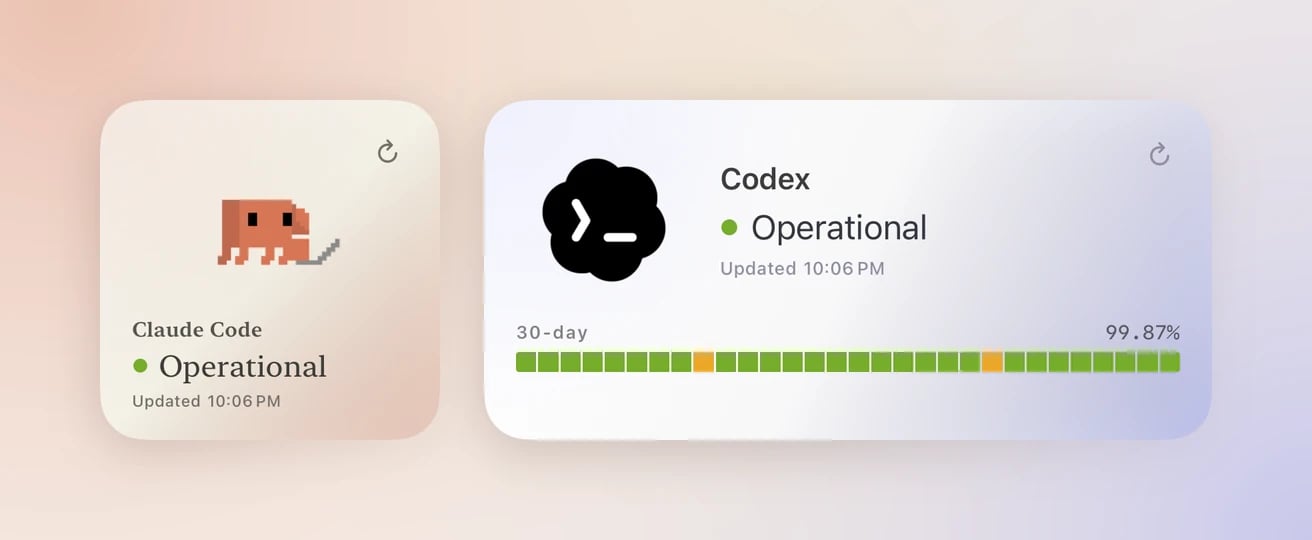
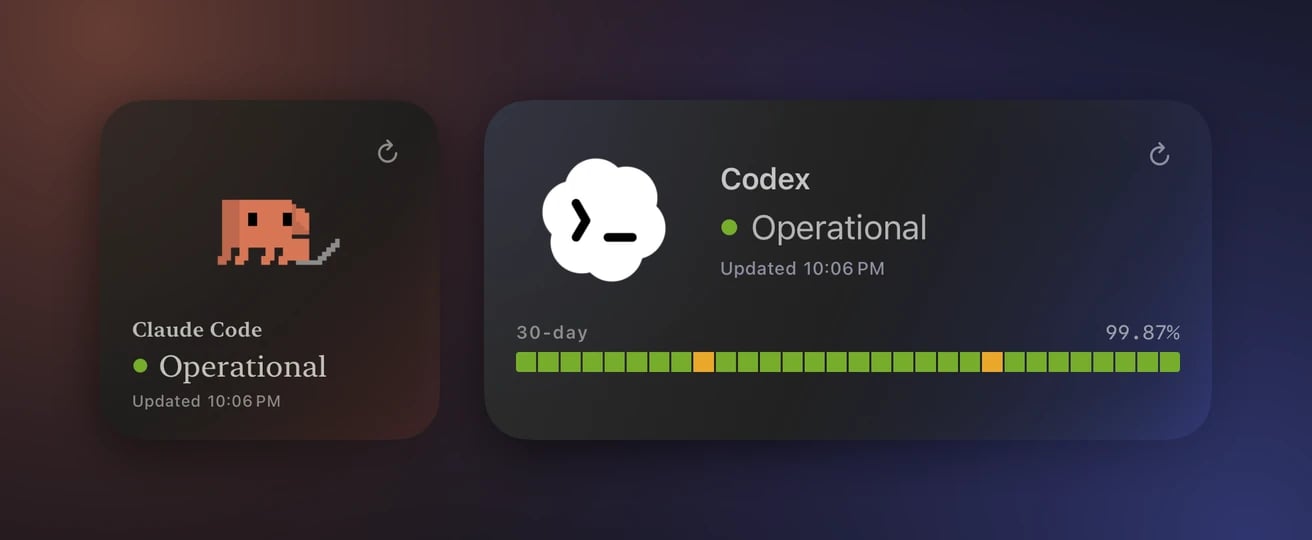
Nomo status in Small and Medium.
OperationalDegradedPartial outageMajor outageMaintenance
Unavailable.
What you need first: nothing. No account and no sign-in.
Set it up:
- Add the widget. See Widget.
- Touch and hold the widget.
- Tap Edit Widget.
- Tap Provider and pick one: Claude, OpenAI, Cursor, xAI, Antigravity, Kimi, DeepSeek, Devin or OpenCode.
- Tap Service and pick one, such as Claude Code.
- Tap outside the widget to finish.
Nomo Usage
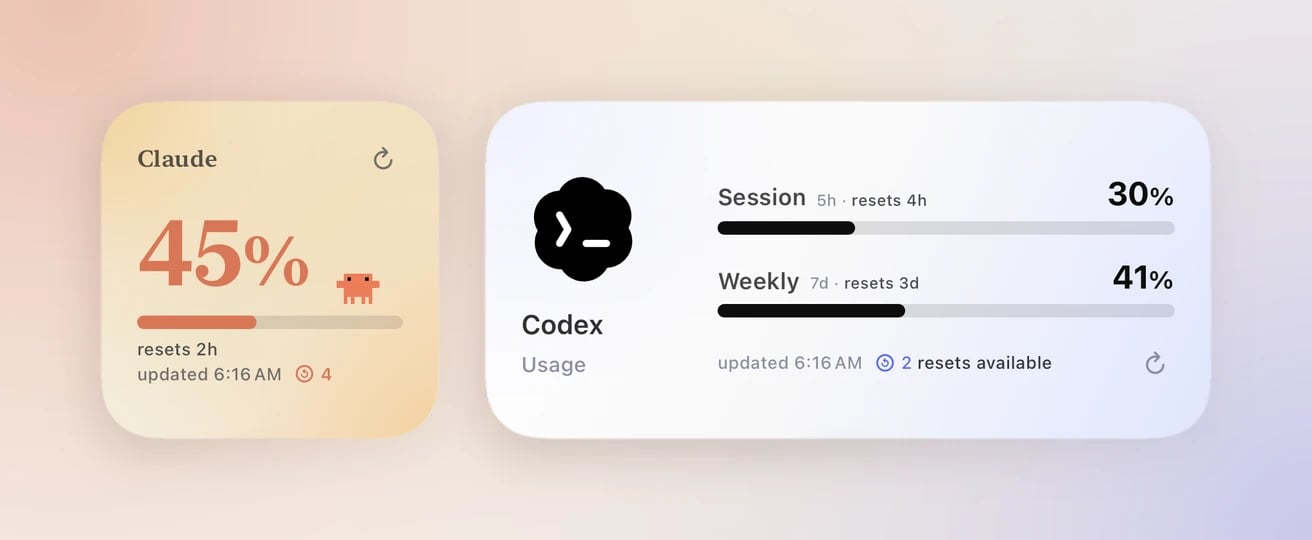
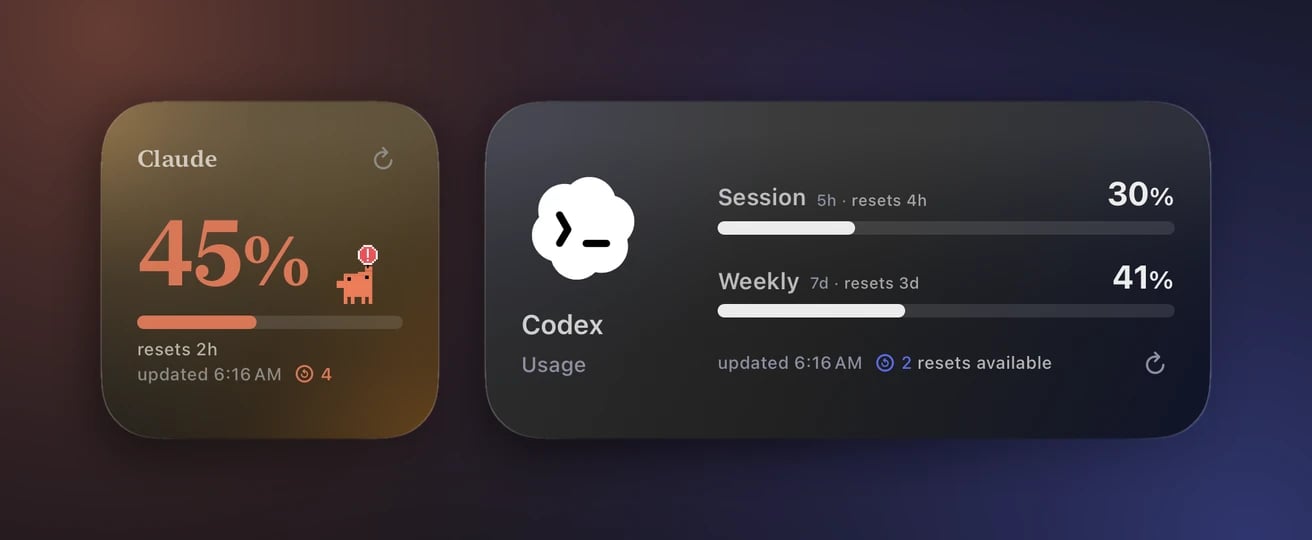
Nomo Usage in Small and Medium.
The bars turn amber at 70% and red at 90%. If your plan has no 5-hour limit,
the widget shows
No session limit instead.
If you have Claude or Codex resets, the Medium size shows how many next to the
updated time. The Small size shows the reset symbol and the number. See
Available resets.
What you need first: a connected account, such as Claude or Codex. Open the
Providers tab, tap the provider, and connect it. See Usage. Until
then, the widget shows Not connected.
Set it up:
- Add the widget. See Widget.
- Touch and hold the widget.
- Tap Edit Widget.
- Tap Provider and pick one, such as Codex.
- Tap Account and pick one. Default follows your Default account in the app.
- Tap Small widget style and pick one. Big percentage shows the number large. Big animation shows the animated icon large.
- Tap Small widget focus and pick the window the Small size shows. Automatic picks it for you. The choices depend on the provider.
- Tap outside the widget to finish.
Nomo Activity
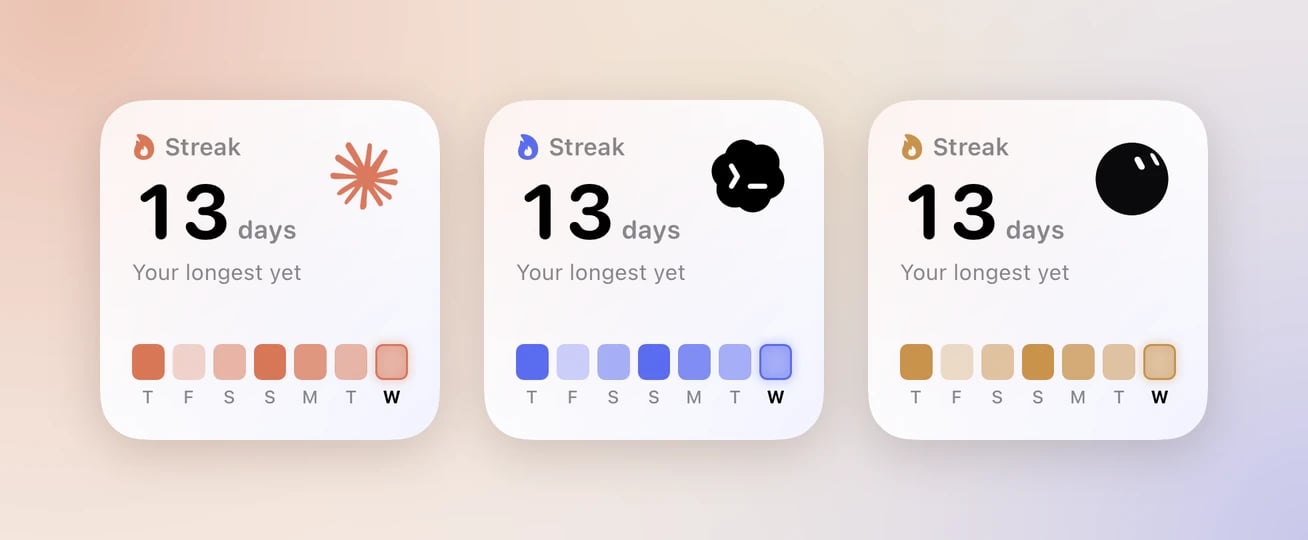
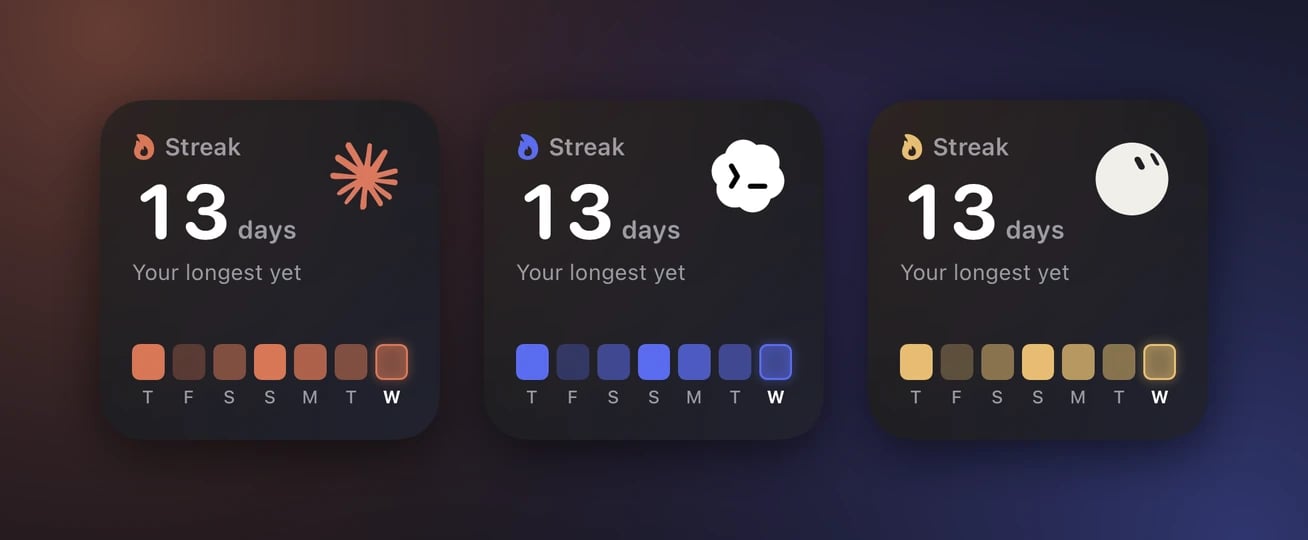
Nomo Activity in Small.
On a narrow iPhone, Medium has no room for the totals.
Large and the Lock Screen size come with Nomo Pro. With Nomo Pro, Medium shows
the last 16 weeks. See Nomo Activity on Pro widgets.
What you need first:
- The Nomo plugin on your computer, version 2.4.0 or later. See Install.
- That computer paired with Nomo. Pairing is free. See Pairing.
- Add the widget. See Widget.
- Touch and hold the widget.
- Tap Edit Widget.
- Tap Character and pick one, such as Automatic or Clawd.
- Tap outside the widget to finish.