> ## Documentation Index
> Fetch the complete documentation index at: https://docs.nomo.gg/llms.txt
> Use this file to discover all available pages before exploring further.
# Overview
> Watch Claude Code and Codex from your iPhone, and answer their permission prompts without going back to your Mac.
Your coding agent runs on your Mac. You don't have to sit in front of it.
Nomo Sessions puts your running Claude Code and Codex sessions on your iPhone —
on the Lock Screen and in the Dynamic Island. When the agent stops to ask
permission for something, your phone tells you, and you can answer it from
there.
Walk to the kitchen. The agent keeps working. It hits a command it needs
approval for, your phone buzzes, you tap **Allow**, and it keeps going. You
never went back to your desk.
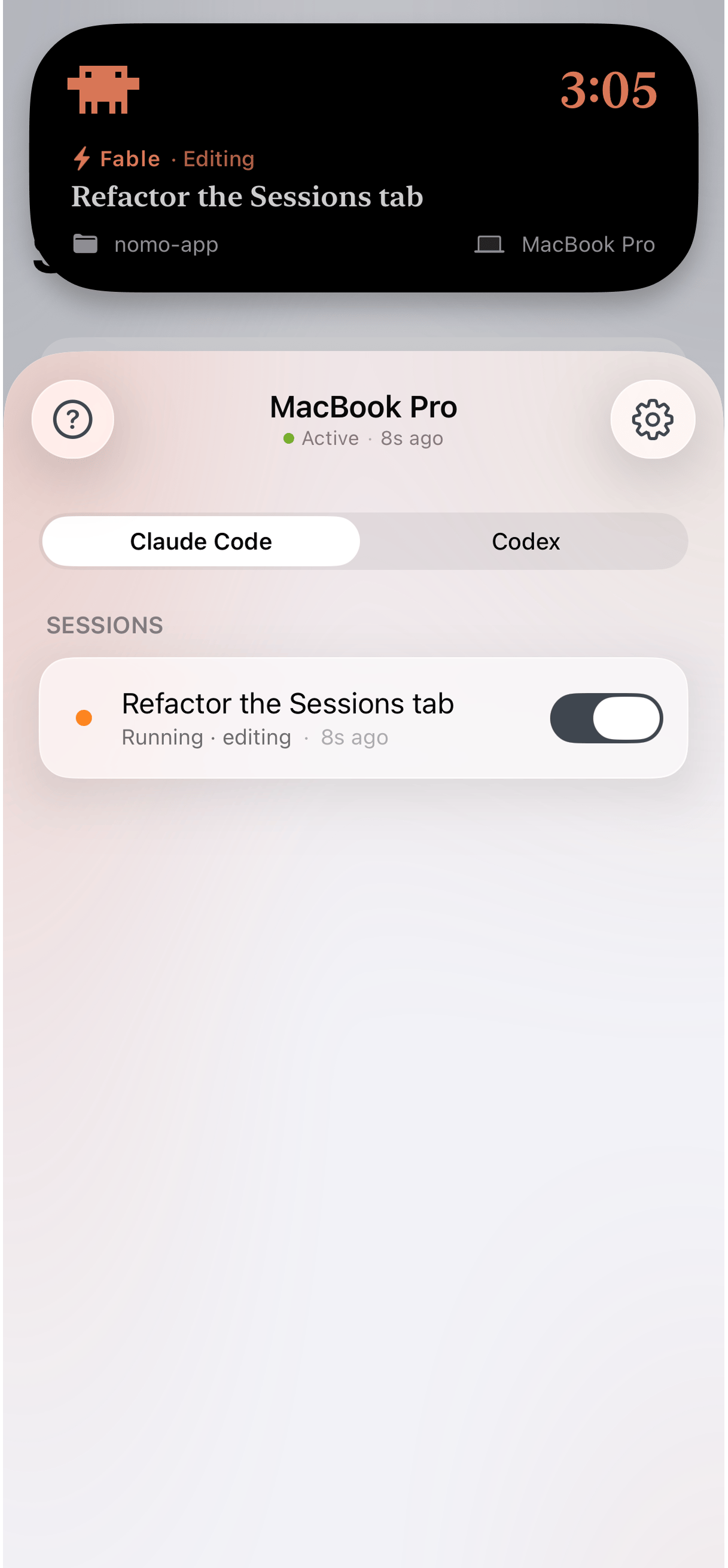
The live card carries the model and what it's doing right now — **Fable ·
Editing** — plus the session title, the folder, and which computer it's on.
Below it, the Sessions tab lists everything running, split by agent.
Sessions is part of Nomo Pro. Status monitoring and usage widgets are free and
work without any of the setup below.
## What's supported
Sessions follows the agent running on your computer, not the account behind it,
so the list is shorter than [Status and Usage](/status-usage).
 Claude Code
 Codex
Codex
## What you need
* Claude Code, or Codex 0.142+, on a Mac
* Either **bun** or **node 18+** — whichever you already have
* Your phone and your computer paired — one QR scan
## How it fits together
Your Mac sends session updates to your phone through Nomo's relay. The relay
can't read them: everything is encrypted on your Mac and only decrypted on your
phone. Nomo's servers move sealed data around without ever holding the key.
That matters for what you can expect — your prompts, file paths, and commands
are yours. It also means pairing is a real cryptographic step rather than a
login, which is why it takes a scan or a typed code.
## Get setup
Two commands, for Claude Code or Codex.
Scan a QR code, or type a one-time code.